> For the complete documentation index, see [llms.txt](https://codemash.gitbook.io/codemash/llms.txt). Markdown versions of documentation pages are available by appending `.md` to page URLs; this page is available as [Markdown](https://codemash.gitbook.io/codemash/get-started/managed-service/quickstart.md).

# Quickstart

Ten minutes from a new project to a record you read from Cloud, the TypeScript SDK, the CLI and your AI agent.

One path, end to end: create a project, give it a `books` collection, add a book in Cloud, then read that book with the TypeScript SDK, with the CLI and through your AI agent (MCP).

Every step below was done on a Norbix installation with a real Cloud; the pictures and outputs come from that run. On the managed service, use the addresses `https://cloud.norbix.ai`, `https://api.norbix.ai` and `https://hub.norbix.ai`.

## How Norbix models it

| You create                             | It is                       | Id                                  |
| -------------------------------------- | --------------------------- | ----------------------------------- |
| a **project** "Bookshop"               | one backend                 | `pr_6JMU7afJi9tZQwfo6de4qq`         |
| a **collection** `books` with a schema | where records live          | schema `sch_1KlQ6X5usf7J4d3lpyJYLS` |
| a **record** "The Hobbit"              | one book                    | `6ac4f3493961abee730d1648`          |
| a **read-only key**                    | lets code read, never write | `nbsu_…`                            |

Before you start: a Norbix account ([sign up](/codemash/get-started/managed-service.md#sign-up)), and Node.js 22 or newer for the SDK and CLI steps.

### 1. Create the project

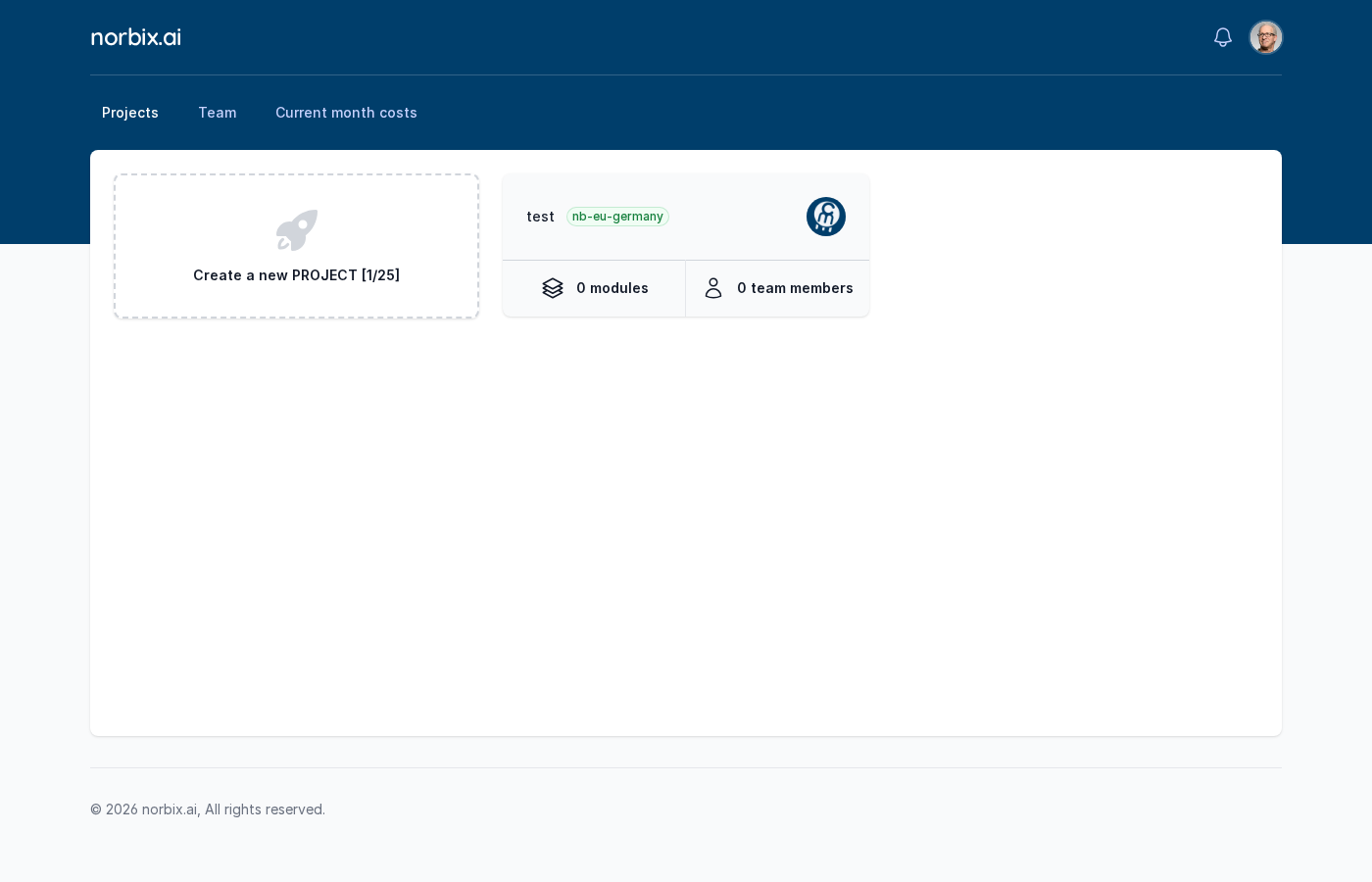
1. On **Projects**, press **Create a new PROJECT**.

   <figure><img src="https://712692422-files.gitbook.io/~/files/v0/b/gitbook-x-prod.appspot.com/o/spaces%2FHy372bqsaex2cqS3ikhL%2Fuploads%2Fgit-blob-5401cb25a86ff17f30b8382b3613c21975b8eee5%2Fquickstart-1.png?alt=media" alt="Projects screen with the Create a new PROJECT card"><figcaption><p>Projects. [1/25] = one project used, 25 allowed.</p></figcaption></figure>
2. **Project Details**: **Project Name** `Bookshop`, pick a **Location** (the region of your data, for example EU — Germany), and a **Description** if you like. Press **Next**.

   <figure><img src="https://712692422-files.gitbook.io/~/files/v0/b/gitbook-x-prod.appspot.com/o/spaces%2FHy372bqsaex2cqS3ikhL%2Fuploads%2Fgit-blob-f4421d2c160dca67aa6849b9e5d95f60e4644131%2Fquickstart-2.png?alt=media" alt="New Project wizard, Project Details step filled with Bookshop"><figcaption><p>Step 1 — Project Details.</p></figcaption></figure>
3. **Database Integration**: press **Connect** on one of the two cards and **Save**:

   * **Mongo DB (Atlas Flex)** — Norbix creates a MongoDB Flex cluster for you (billed on your next invoice);
   * **Mongo DB (Connection String)** — your own MongoDB; paste its connection string.

   Then press **Next**.

   <figure><img src="https://712692422-files.gitbook.io/~/files/v0/b/gitbook-x-prod.appspot.com/o/spaces%2FHy372bqsaex2cqS3ikhL%2Fuploads%2Fgit-blob-336e91df5ff38cecfb930ee01d05aac1f8d5a94a%2Fquickstart-3.png?alt=media" alt="Mongo DB Connection String dialog with a connection string and Save"><figcaption><p>Step 2 — here with your own MongoDB. The integration is saved as "Primary Database".</p></figcaption></figure>
4. **Review & Create**: check the values and press **Save** (or **Start Trial...** if you have no subscription yet — [Trial and plan limits](/codemash/get-started/managed-service.md#trial-and-plan-limits)).

   <figure><img src="https://712692422-files.gitbook.io/~/files/v0/b/gitbook-x-prod.appspot.com/o/spaces%2FHy372bqsaex2cqS3ikhL%2Fuploads%2Fgit-blob-871b801f10e50b3b9e8d1e4c8ecf006e8ee6f0d0%2Fquickstart-4.png?alt=media" alt="Review and Create step with project name, region, description and database"><figcaption><p>Step 3 — Review &#x26; Create.</p></figcaption></figure>
5. The new project appears on **Projects**.

   <figure><img src="https://712692422-files.gitbook.io/~/files/v0/b/gitbook-x-prod.appspot.com/o/spaces%2FHy372bqsaex2cqS3ikhL%2Fuploads%2Fgit-blob-b4198720f4cd979335ada13655cc1febe6823dd4%2Fquickstart-5.png?alt=media" alt="Projects screen now showing the Bookshop project card"><figcaption><p>Bookshop is created.</p></figcaption></figure>

### 2. Database is already on

Open **Bookshop**. A project created with a database starts with the **Database** and **Users** (Membership) modules switched on; every other module is under **Available modules** with an **Enable** link. More: [Modules](/codemash/cloud/concepts/modules.md).

<figure><img src="https://712692422-files.gitbook.io/~/files/v0/b/gitbook-x-prod.appspot.com/o/spaces%2FHy372bqsaex2cqS3ikhL%2Fuploads%2Fgit-blob-493b2c4f0966a70d26c3d95b87de1f5b5a2aac30%2Fquickstart-6.png?alt=media" alt="Bookshop overview with Users and Database active and Available modules"><figcaption><p>Project overview — Database is active.</p></figcaption></figure>

### 3. Create the `books` collection

1. Open **Database** → **Collections** and press **Add New**.

   <figure><img src="https://712692422-files.gitbook.io/~/files/v0/b/gitbook-x-prod.appspot.com/o/spaces%2FHy372bqsaex2cqS3ikhL%2Fuploads%2Fgit-blob-009993f302230bd81a514735e40e03b093e8d46f%2Fquickstart-7.png?alt=media" alt="Data Collections screen, empty, with Add New"><figcaption><p>Data Collections — still empty.</p></figcaption></figure>
2. **Schema name**: `books`. Then open the **JSON** tab, press **Edit JSON**, paste the data schema into the top editor and the form layout into the bottom one, press **Save schemas' changes** and go back to **Visual Builder**. (You can also drag the fields in from the **Form fields** panel instead.)

   Data schema (top editor):

   ```json
   {
     "$schema": "https://norbix.ai/schemas/meta/v1.json",
     "title": "books",
     "type": "object",
     "additionalProperties": true,
     "properties": {
       "title": { "type": "string", "maxLength": 200 },
       "pages": { "type": "integer", "minimum": 0 },
       "in_stock": { "type": "boolean" },
       "genre": { "source": "enum", "values": ["fiction", "science", "history"] }
     },
     "required": ["title", "pages"]
   }
   ```

   Form layout (bottom editor):

   ```json
   {
     "$schema": "https://norbix.ai/schemas/ui/v1.json",
     "metadata": { "title": "Book" },
     "tabs": [{
       "tabName": "Book",
       "containers": [
         { "cells": [
           { "colSpan": 8, "element": { "fieldId": "title", "meta": { "widget": "text", "label": "Title", "required": true } } },
           { "colSpan": 4, "element": { "fieldId": "pages", "meta": { "widget": "number", "label": "Pages", "required": true } } }
         ] },
         { "cells": [
           { "colSpan": 6, "element": { "fieldId": "in_stock", "meta": { "widget": "boolean", "label": "In stock" } } },
           { "colSpan": 6, "element": { "fieldId": "genre", "meta": { "widget": "select", "label": "Genre" } } }
         ] }
       ]
     }]
   }
   ```

   <figure><img src="https://712692422-files.gitbook.io/~/files/v0/b/gitbook-x-prod.appspot.com/o/spaces%2FHy372bqsaex2cqS3ikhL%2Fuploads%2Fgit-blob-5c90df12fa66efc3d233fd300796b42b76dec27e%2Fquickstart-8.png?alt=media" alt="New schema builder named books with Title and Pages fields and the Form fields panel"><figcaption><p>The builder shows the fields from the JSON.</p></figcaption></figure>
3. Close the **Form fields** panel and press **Save & publish**. You are back on **Data Collections**, where `books` is **Published · v1**.

   <figure><img src="https://712692422-files.gitbook.io/~/files/v0/b/gitbook-x-prod.appspot.com/o/spaces%2FHy372bqsaex2cqS3ikhL%2Fuploads%2Fgit-blob-3d2e0f24d8823ec0a4a13931bd60c20cae580c2c%2Fquickstart-9.png?alt=media" alt="Data Collections with books Published v1"><figcaption><p>The collection exists.</p></figcaption></figure>

### 4. Add a book in Cloud

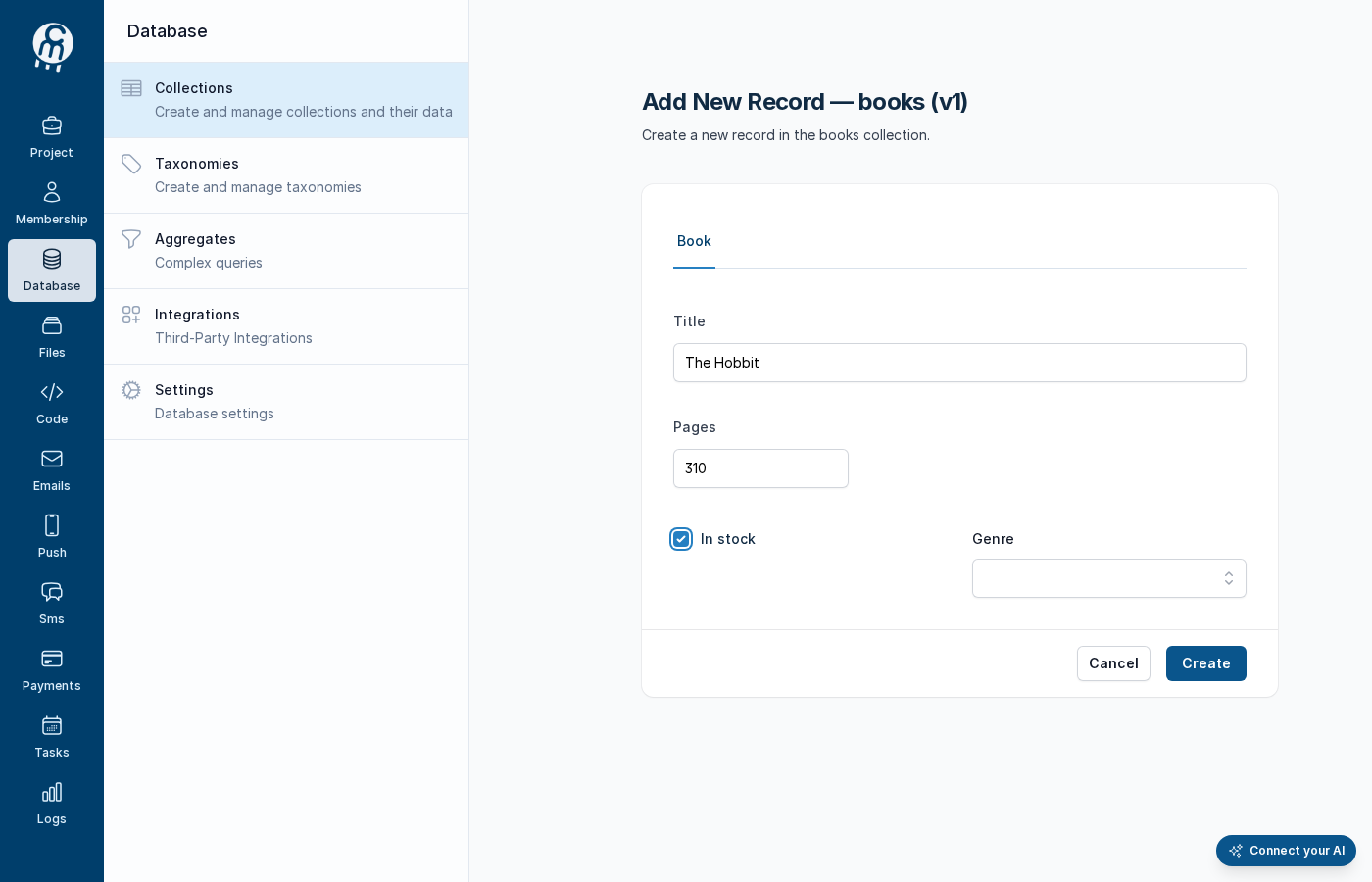
1. Open `books` and press **Add New**. Fill in **Title** `The Hobbit`, **Pages** `310`, tick **In stock**, and press **Create**.

   <figure><img src="https://712692422-files.gitbook.io/~/files/v0/b/gitbook-x-prod.appspot.com/o/spaces%2FHy372bqsaex2cqS3ikhL%2Fuploads%2Fgit-blob-78fd8630739d4293c14c711b1bd7316964220cb5%2Fquickstart-10.png?alt=media" alt="Add New Record form for books filled with The Hobbit, 310, In stock"><figcaption><p>Add New Record — books (v1).</p></figcaption></figure>
2. The record is in the list.

   <figure><img src="https://712692422-files.gitbook.io/~/files/v0/b/gitbook-x-prod.appspot.com/o/spaces%2FHy372bqsaex2cqS3ikhL%2Fuploads%2Fgit-blob-fa215ce4527dbc3ed3cb3f6c3dfeae89f8c8c094%2Fquickstart-11.png?alt=media" alt="books records list with The Hobbit, 310, True"><figcaption><p>books — one record.</p></figcaption></figure>

### 5. Get the project id and a read-only key

* **Project id**: Project → **Settings** → **Brand** → **Project Id** (copy button) — [Keys and environments](/codemash/get-started/keys-and-environments.md#project-id).
* **Read-only key**: create an AI service user with `read` rights on this project, as shown in [Keys and environments → Keys](/codemash/get-started/keys-and-environments.md#keys). Cloud has no screen for it yet, so this one step is a `curl` call. Keep the `nbsu_…` key in an environment variable:

```sh
export NORBIX_PROJECT_ID='pr_6JMU7afJi9tZQwfo6de4qq'
export NORBIX_API_KEY='nbsu_…'
```

### 6. Read it with the TypeScript SDK

```sh
npm install @norbix.ai/ts
```

`read-books.mjs`:

```js
import { Norbix } from '@norbix.ai/ts';

const norbix = new Norbix({
  apiKey: process.env.NORBIX_API_KEY, // nbsu_…
  projectId: process.env.NORBIX_PROJECT_ID, // pr_…
});

const res = await norbix.api.database.find({ collectionName: 'books' });
console.log(JSON.stringify(res.list.items, null, 2));
```

```sh
node read-books.mjs
```

```json
[
  {
    "_id": "6ac4f3493961abee730d1648",
    "title": "The Hobbit",
    "pages": 310,
    "in_stock": true,
    "_meta": {
      "schemaVersion": 1,
      "createdOn": 1791292233585,
      "modifiedOn": 1791292233585
    }
  }
]
```

The client sends the project id with every call, and a call without an environment reads PROD.

The SDK reads `NORBIX_API_URL` / `NORBIX_HUB_URL` when you are not on the managed service. More: [Install the SDK](/codemash/sdks/install.md).

### 7. Read it with the CLI

```sh
npm install -g @norbix.ai/cli
norbix login --api-key "$NORBIX_API_KEY" --project "$NORBIX_PROJECT_ID"
norbix db find books
```

```json
{
  "list": {
    "items": [
      { "_id": "6ac4f3493961abee730d1648", "title": "The Hobbit", "pages": 310, "in_stock": true,
        "_meta": { "schemaVersion": 1, "createdOn": 1791292233585, "modifiedOn": 1791292233585 } }
    ],
    "hasMore": false,
    "hasPrevious": false
  },
  "responseStatus": { "isSuccess": true, "errors": [] }
}
```

On the managed service also pass your region, for example `--region nb-eu-germany` (or set it once with `norbix configure`).

More: [CLI](/codemash/cli/cli.md).

### 8. Ask your AI agent

1. In Cloud open **Account → Connect your AI**. Copy the **Prompt**, or the configuration block for your tool under **Add Norbix to your tool**. The **MCP URL** is `https://hub.norbix.ai/v3/account/mcp`; your tool signs in with OAuth (or send the read-only key as `Authorization: Bearer nbsu_…`).

   <figure><img src="https://712692422-files.gitbook.io/~/files/v0/b/gitbook-x-prod.appspot.com/o/spaces%2FHy372bqsaex2cqS3ikhL%2Fuploads%2Fgit-blob-8edd01e14b967f7474fad09e7243a214946442fa%2Fquickstart-12.png?alt=media" alt="Connect your AI screen with the Prompt, Hub URL, API URL and MCP URL"><figcaption><p>Account → Connect your AI (here on a test installation).</p></figcaption></figure>
2. Ask: *"List the records in the books collection of my Bookshop project, in PROD."*

The agent calls the Norbix tool `find_records` with `{"projectId": "pr_6JMU7afJi9tZQwfo6de4qq", "collectionName": "books", "env": "PROD"}` and gets the same record back:

```json
{ "ok": true, "data": { "list": { "items": [
  { "_id": "6ac4f3493961abee730d1648", "title": "The Hobbit", "pages": 310, "in_stock": true }
] } } }
```

(This tool call was run against the MCP URL with a read-only key.) More: [AI for developers](/codemash/ai/developers.md) · [Connect your IDE](/codemash/ai/developers/connect-your-ide.md).

## Where you use it

* Next: [Database](/codemash/cloud/database.md) · [Keys and environments](/codemash/get-started/keys-and-environments.md) · [Permissions](/codemash/cloud/concepts/permissions.md)
* SDK: [Install the SDK](/codemash/sdks/install.md) · CLI: [CLI](/codemash/cli/cli.md) · API: [Authentication](/codemash/api-reference/guides/authentication.md) · [Find records](/codemash/api-reference/database/collections/find.md)