> For the complete documentation index, see [llms.txt](https://codemash.gitbook.io/codemash/llms.txt). Markdown versions of documentation pages are available by appending `.md` to page URLs; this page is available as [Markdown](https://codemash.gitbook.io/codemash/cloud/tasks.md).
# Tasks (Scheduler)
Send an Email, SMS or Push campaign again and again on a cron schedule — the Tasks (Scheduler) module.
The **Tasks** module sends a campaign on a repeating schedule — every morning, every Monday, the first day of each month — without anyone pressing **Send**. A scheduled task holds a 5-field cron schedule (in UTC), the user it runs as, and an Email, SMS or Push campaign; each time the schedule fires, Norbix starts that campaign. To send one campaign once at a later time, use **Send later** on the channel's campaign page instead.
## Enable the module
Open a project and choose **Tasks** in the left menu. While the module is off, Cloud shows the **Norbix Tasks** page; press **ENABLE**. You need a project role that can manage modules (the `scheduler:manage` permission, for example **Owner** or **Administrator**).
Tasks → enable page, shown while the module is off.
{% hint style="info" %}
The enable page still says that only email campaigns work and that Push and SMS tasks are coming. That text is old: the task form offers **Email**, **Push** and **Sms**, and tasks of all three kinds were saved and ran on a test project on 2026-10-06.
{% endhint %}
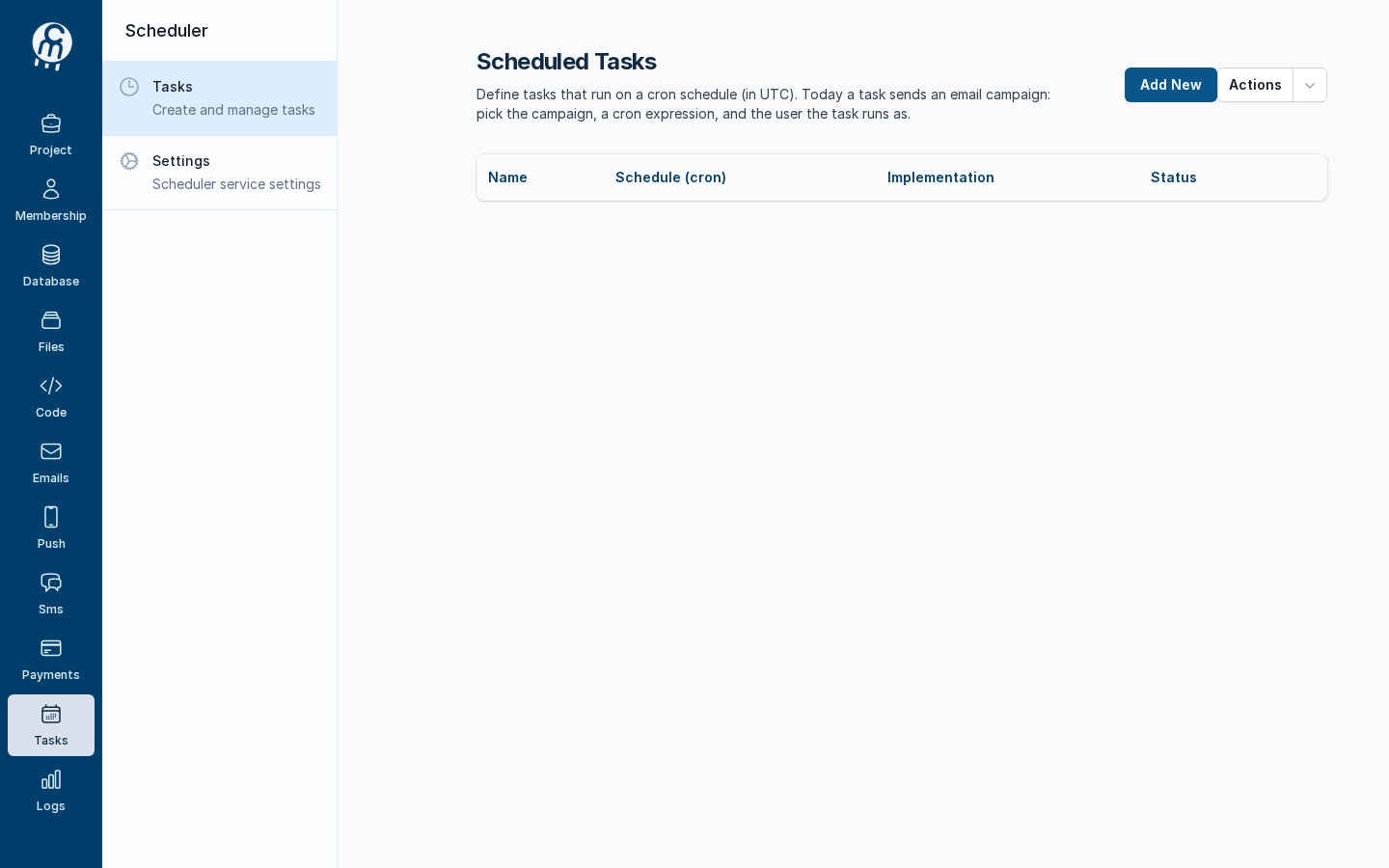
After **ENABLE**, Cloud opens **Scheduled Tasks** (empty for a new project) and shows the Scheduler menu: **Tasks** and **Settings**.
After ENABLE: the Scheduled Tasks list and the Scheduler menu.
Turning the module on also starts again every task that was enabled when the module was last turned off. To turn it off, see [Settings](/codemash/cloud/tasks/settings.md).
## Module map
| Screen | What it is for |
| -------------------------------------------------- | ------------------------------------------------------------------------------------------------------------------------------------------------------------------------------------------------------------------------------------- |
| [Tasks](/codemash/cloud/tasks/tasks.md) | Every scheduled task of the project with its cron, channel and status: [create](/codemash/cloud/tasks/tasks/new.md), [edit, disable or enable](/codemash/cloud/tasks/tasks/edit.md), [delete](/codemash/cloud/tasks/tasks/delete.md). |
| [Task run log](/codemash/cloud/tasks/tasks/log.md) | When each task ran and why a run failed — read in **Logs → Logs**, next to the campaigns each run started. |
| [Settings](/codemash/cloud/tasks/settings.md) | Turn the module off for the project; the tasks are kept. |
## Your first task
1. Get the channel ready — the module on, a provider and a template ([Email](/codemash/cloud/emails.md), [SMS](/codemash/cloud/sms.md) or [Push](/codemash/cloud/push.md)).
2. [Create a service user with a role](/codemash/cloud/tasks/tasks/new.md#before-you-start) — the user the task runs as. Its role must let it read the template and send the campaign.
3. [Create the task](/codemash/cloud/tasks/tasks/new.md) — name, cron, **Run as user**, **Command** (Email, Sms or Push) and the campaign.
4. [Check the run](/codemash/cloud/tasks/tasks/log.md) — at the cron time a campaign appears in the channel's campaign list, and **Logs** shows *Scheduler task ran*.
## Use it from code
Every **Do it from code** block in the Tasks pages uses this client. Install `@norbix.ai/ts` (see [SDK install](/codemash/sdks/install.md)) and set `NORBIX_API_KEY` to a project API key.
```ts
import { Norbix } from '@norbix.ai/ts';
const projectId = 'pr_7ZX0qmmXY0AoSXi9GAITtr';
const norbix = new Norbix({ projectId }); // the key comes from NORBIX_API_KEY
await norbix.hub.scheduler.enableScheduler();
const { list } = await norbix.hub.scheduler.getSchedulerTasks({ pageSize: 20 });
console.log(list.items.map((t) => `${t.taskId} ${t.name} ${t.cron} ${t.type} enabled=${t.isEnabled}`));
```
The CLI lines use the generic `norbix hub …` commands of `@norbix.ai/cli` (signed in with `norbix login`, project id in `NORBIX_PROJECT_ID`):
```sh
norbix hub scheduler enable
```
{% hint style="info" %}
The client sends the project id with every call (the `norbix-project-id` header), so the requests do not repeat it. The CLI does the same with the project of `norbix login --project …`, `norbix config set projectId …` or `NORBIX_PROJECT_ID`. The shorter `norbix scheduler …` commands work too, for example `norbix scheduler list`.
{% endhint %}
## Related
[Campaigns concept](/codemash/cloud/concepts/campaigns.md) · [Message templates concept](/codemash/cloud/concepts/message-templates.md) · [Permissions](/codemash/cloud/concepts/permissions.md) · [Users](/codemash/cloud/membership/users.md) · [SDK](/codemash/sdks/scheduler.md) · [CLI](/codemash/cli/reference/scheduler.md) · [API](/codemash/api-reference/scheduler.md)