> For the complete documentation index, see [llms.txt](https://codemash.gitbook.io/codemash/llms.txt). Markdown versions of documentation pages are available by appending `.md` to page URLs; this page is available as [Markdown](https://codemash.gitbook.io/codemash/cloud/logs.md).
# Logs
Capture, search and follow the log entries of your project — every request, command and trigger, one request flow at a time.
The Logs module records what happens in your project: each request to the Hub and the API (`http:request` / `http:response`), the commands and queries it ran, triggers that were skipped, and the work Norbix does in the background. You search the entries in Cloud, open one entry to see the whole **request flow** it belongs to, and keep the entries in your own database with the **Norbix Logging** integration.
## Enable the module
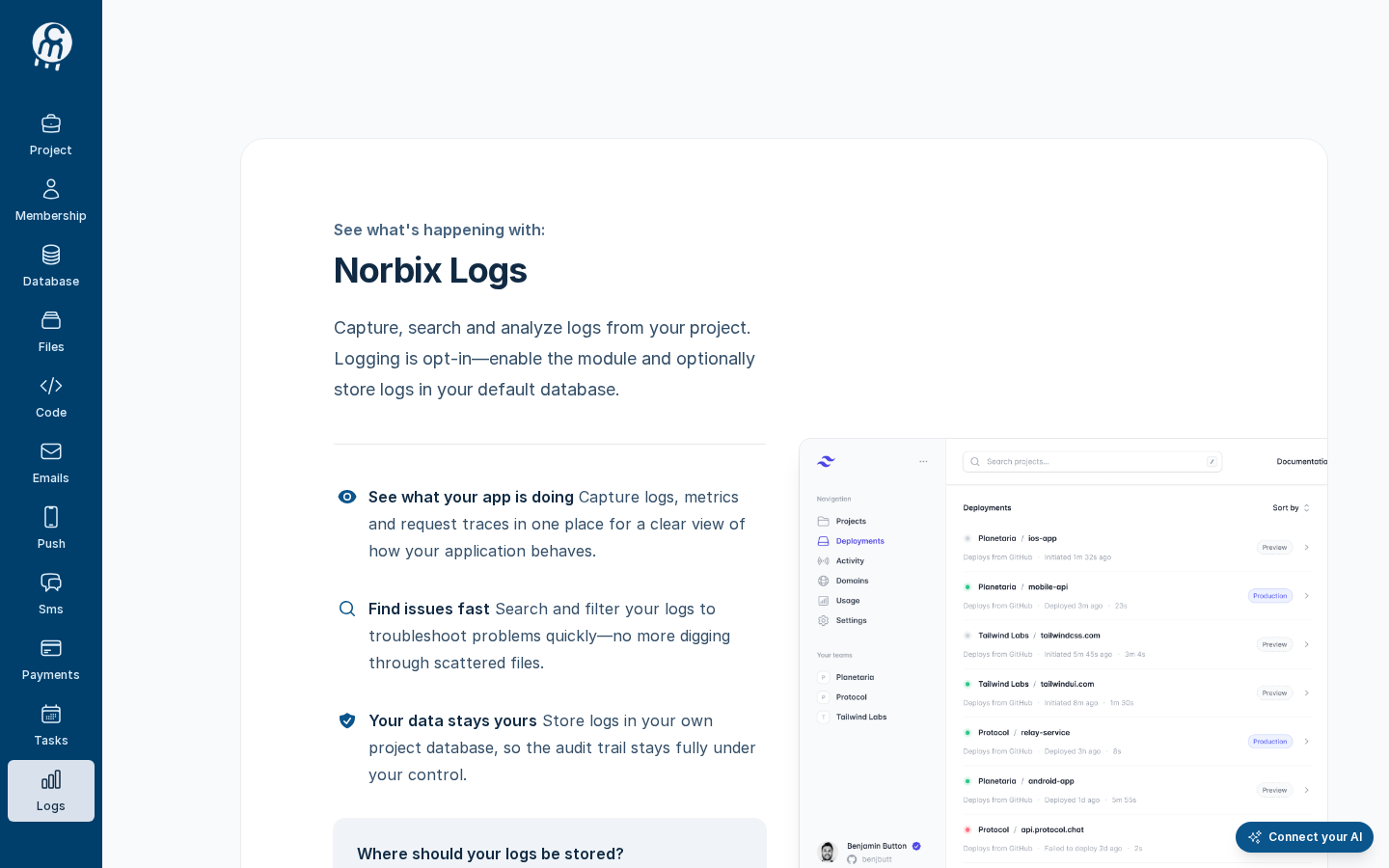
Open a project and choose **Logs** in the left menu. While the module is off, Cloud shows the **Norbix Logs** page with the **ENABLE LOGS** button. You need a project role that can manage modules (the `logging:manage` permission, for example **Owner** or **Administrator**).
Logs → enable page, shown while the module is off.
Logging is opt-in: turning the module on alone stores nothing. The first time you enable it, the card **Where should your logs be stored?** has the check box **Save logs to my default database**. Tick it — Norbix then creates a **Norbix Logging** integration in your project's default database and tests it, so entries show up in Cloud at once. The check box is there only when the project has a default database ([Database → Integrations](/codemash/cloud/integrations.md)); without one, the card says *No default database yet* and you add [Norbix Logging](/codemash/cloud/logs/integrations/providers/norbix-logging.md) later.
Save logs to my default database is ticked.
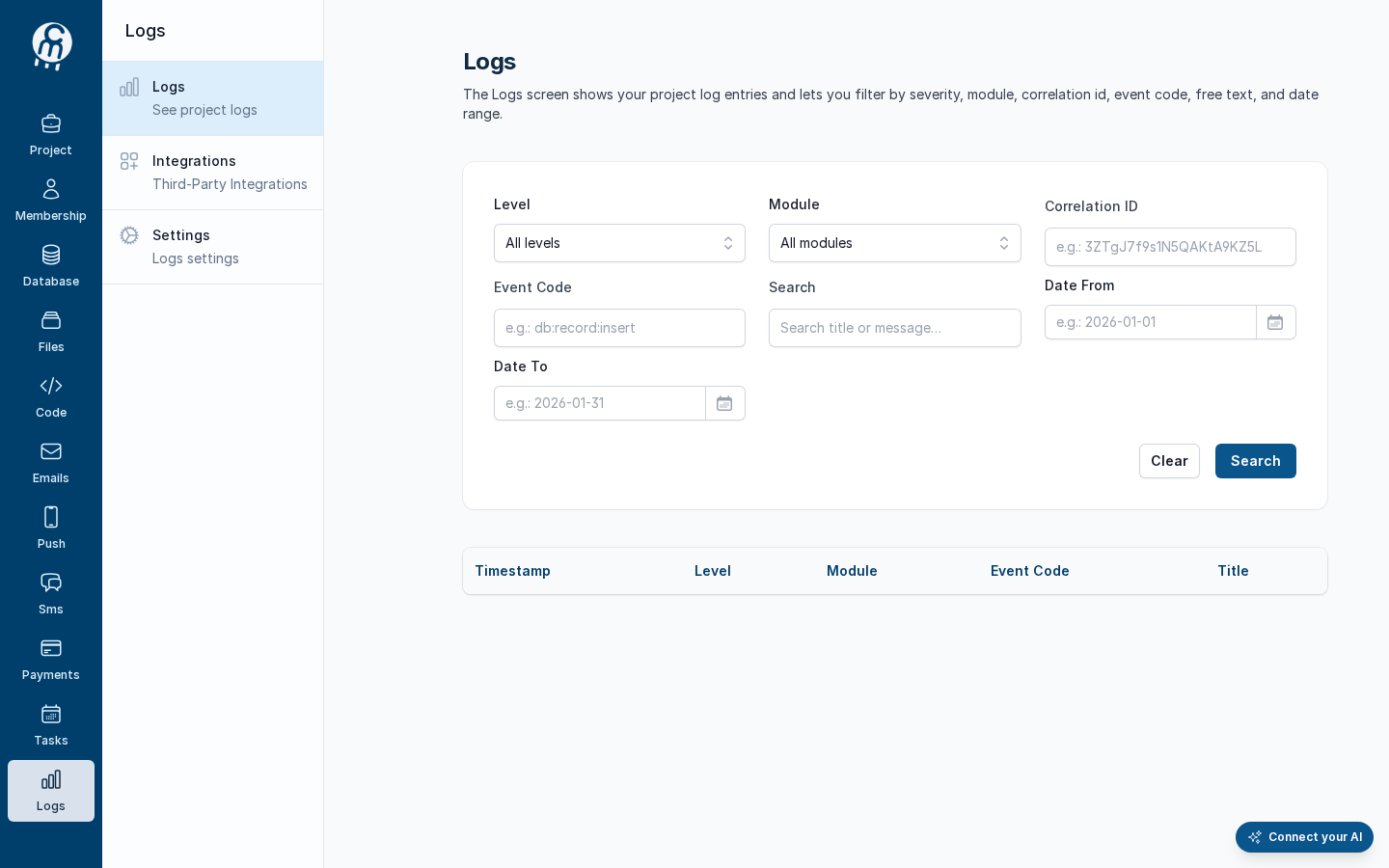
After **ENABLE LOGS**, Cloud opens the **Logs** list and shows the Logs menu: **Logs** (*See project logs*), **Integrations** (*Third-Party Integrations*), **Settings** (*Logs settings*). The list fills as soon as the project is used.
After ENABLE LOGS: the Logs list and the Logs menu.
To turn the module off again, see [Settings](/codemash/cloud/logs/settings.md).
## Module map
| Screen | What it is for |
| ---------------------------------------------------- | ------------------------------------------------------------------------------------------------------------------------------------------------------------------------------------------------------------------------------------------------------------------------------------------------------------------------------------------------------------------------------------------------------------ |
| [Logs](/codemash/cloud/logs/logs.md) | Search the entries by level, module, correlation id, event code, text and date; open one to see its [request flow](/codemash/cloud/logs/logs/details.md). |
| [Integrations](/codemash/cloud/logs/integrations.md) | Where the entries go. [Norbix Logging](/codemash/cloud/logs/integrations/providers/norbix-logging.md) keeps them in your database and is the only provider that delivers today; [test](/codemash/cloud/logs/integrations/test.md), [disable or delete](/codemash/cloud/logs/integrations/disable.md) an integration. Logging has [no default integration](/codemash/cloud/logs/integrations/set-default.md). |
| [Settings](/codemash/cloud/logs/settings.md) | Two log filters, **Clean all logs**, and turning the module off. |
## Your first log entries
1. [Enable the module](#enable-the-module) with **Save logs to my default database** ticked — or add [Norbix Logging](/codemash/cloud/logs/integrations/providers/norbix-logging.md) later and [test it](/codemash/cloud/logs/integrations/test.md). An integration receives entries only when it is enabled **and** its last test passed.
2. Use your project: call the API from your app, save a record, run a trigger. For example, publishing the `books` collection writes an `http:request` entry, two command entries and an `http:response` entry, all with one correlation id.
3. Open [Logs](/codemash/cloud/logs/logs.md), filter by **Level**, **Event Code** or **Search**, and press the timestamp of an entry.
4. Read the [request flow](/codemash/cloud/logs/logs/details.md): every entry with the same correlation id, oldest first, with its metadata.
5. When the list gets too long, use the filters on [Settings](/codemash/cloud/logs/settings.md).
## Use it from code
Every **Do it from code** block in the Logs pages uses this client. Install `@norbix.ai/ts` (see [SDK install](/codemash/sdks/install.md)) and set `NORBIX_API_KEY` to a project API key.
```ts
import { Norbix } from '@norbix.ai/ts';
const projectId = 'pr_5WMZI7wlPf5cixF1NE2RbO';
const norbix = new Norbix({ projectId }); // the key comes from NORBIX_API_KEY
const { list } = await norbix.hub.logs.getLogs({ pageSize: 3 });
for (const e of list.items) console.log(e.timestamp, e.level, e.module, e.eventCode, e.title);
// 2026-10-06T17:49:31.944Z Information Any http:response GET /v2/logs/integrations -> 200
```
The CLI lines use the generic `norbix hub logs …` commands of `@norbix.ai/cli` (signed in with `norbix login`, project id in `NORBIX_PROJECT_ID`):
```sh
norbix hub logs get --pageSize 3
norbix hub logs logging enable --createNorbixLogging false
```
{% hint style="info" %}
The client sends the project id with every call (the `norbix-project-id` header), so the requests do not repeat it. The CLI does the same with the project of `norbix login --project …`, `norbix config set projectId …` or `NORBIX_PROJECT_ID`. The short commands `norbix logs list`, `norbix logs trail ` and `norbix logs settings` work too.
{% endhint %}
## Related
[Integrations concept](/codemash/cloud/concepts/integrations.md) · [Errors](/codemash/cloud/concepts/errors.md) · [SDK](/codemash/sdks/logs.md) · [CLI](/codemash/cli/reference/logs.md) · [API](/codemash/api-reference/logs.md)