> For the complete documentation index, see [llms.txt](https://codemash.gitbook.io/codemash/llms.txt). Markdown versions of documentation pages are available by appending `.md` to page URLs; this page is available as [Markdown](https://codemash.gitbook.io/codemash/cloud/files/integrations/providers/local.md).
# Local
Connect Local — keep a project's files in a folder on the disk of your self-hosted server.
**Local** keeps the project's files on the server's own disk, in a folder under the files root the server operator chose. It is for self-hosted servers only; the managed service does not offer it.
## Get your credentials
Local has no provider account and no secret. The server operator decides where files may live:
1. Set `NORBIX_FILES_LOCAL_ROOT` on the Hub and the Api to a folder, for example `/var/lib/norbix/files` (the sample `.env` of a self-hosted install uses `.local/files`). Local is off until it is set; `NORBIX_FILES_LOCAL_DISABLED` switches it off again.
2. When more than one Api server serves files, set `NORBIX_FILES_LOCAL_SIGNING_KEY` to one shared secret on all of them. Without it each server signs its own download and upload links, and a link stops working after a restart or on another server.
3. Restart the Hub and the Api. The log says `[ OK ] Files - Local provider root: /var/lib/norbix/files`. Back up that folder like any other data.
See [Self-hosted](/codemash/get-started/self-hosted.md) for the rest of the server set-up.
## Connect it in Cloud
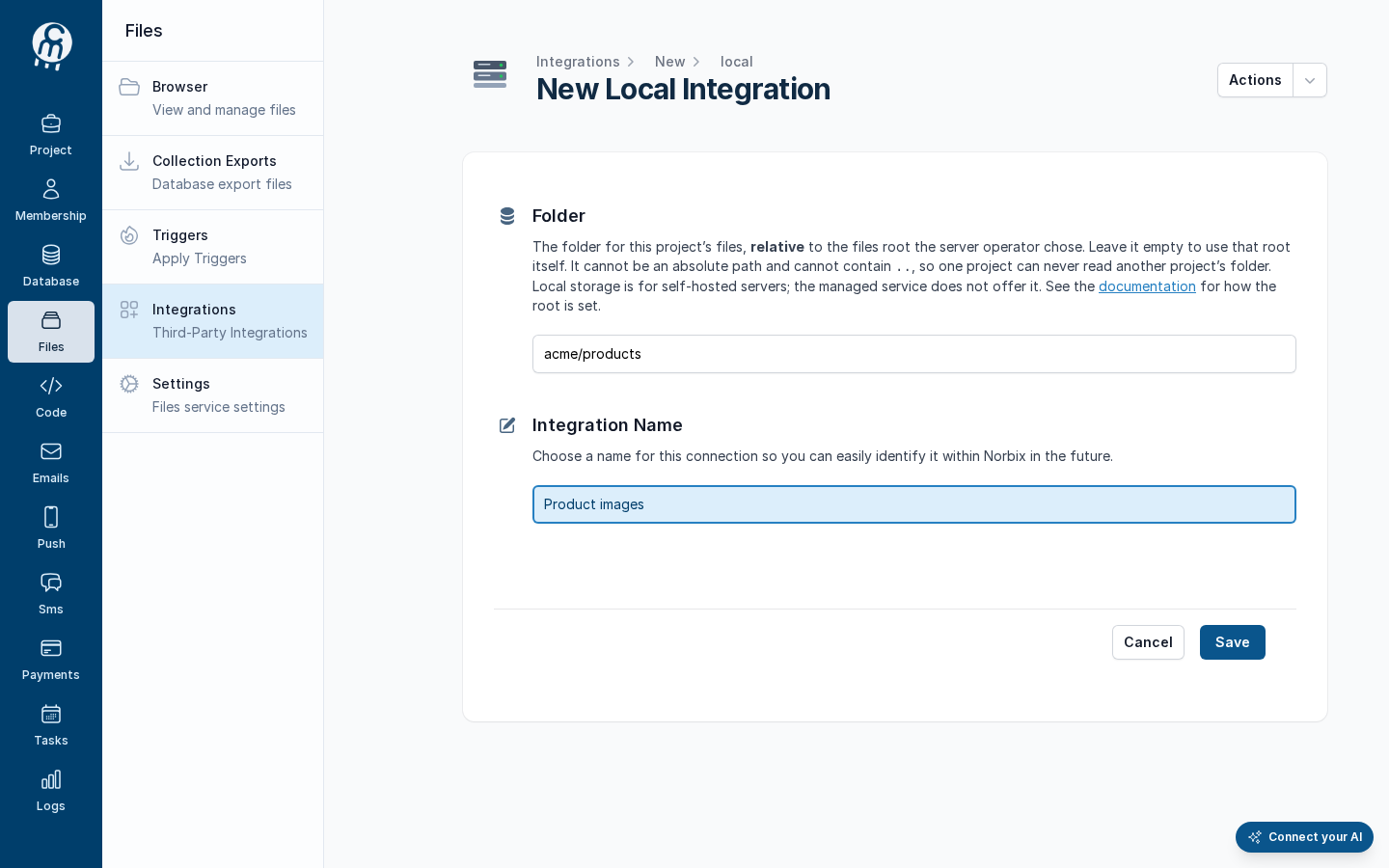
**Where:** Files → Integrations → **Add New Integration** → Local
| Field | Required | What it does | Example |
| ---------------- | -------- | ------------------------------------------------------------------------------------------------------------------------------------------------------------------------------------------------------------- | ---------------- |
| Folder | no | The project's folder, **relative** to the files root. Empty means the root itself. It cannot start with `/` or a drive letter and cannot contain `..`, so a project can never reach another project's folder. | `acme/products` |
| Integration Name | yes | The name in the list. | `Product images` |
The filled form.
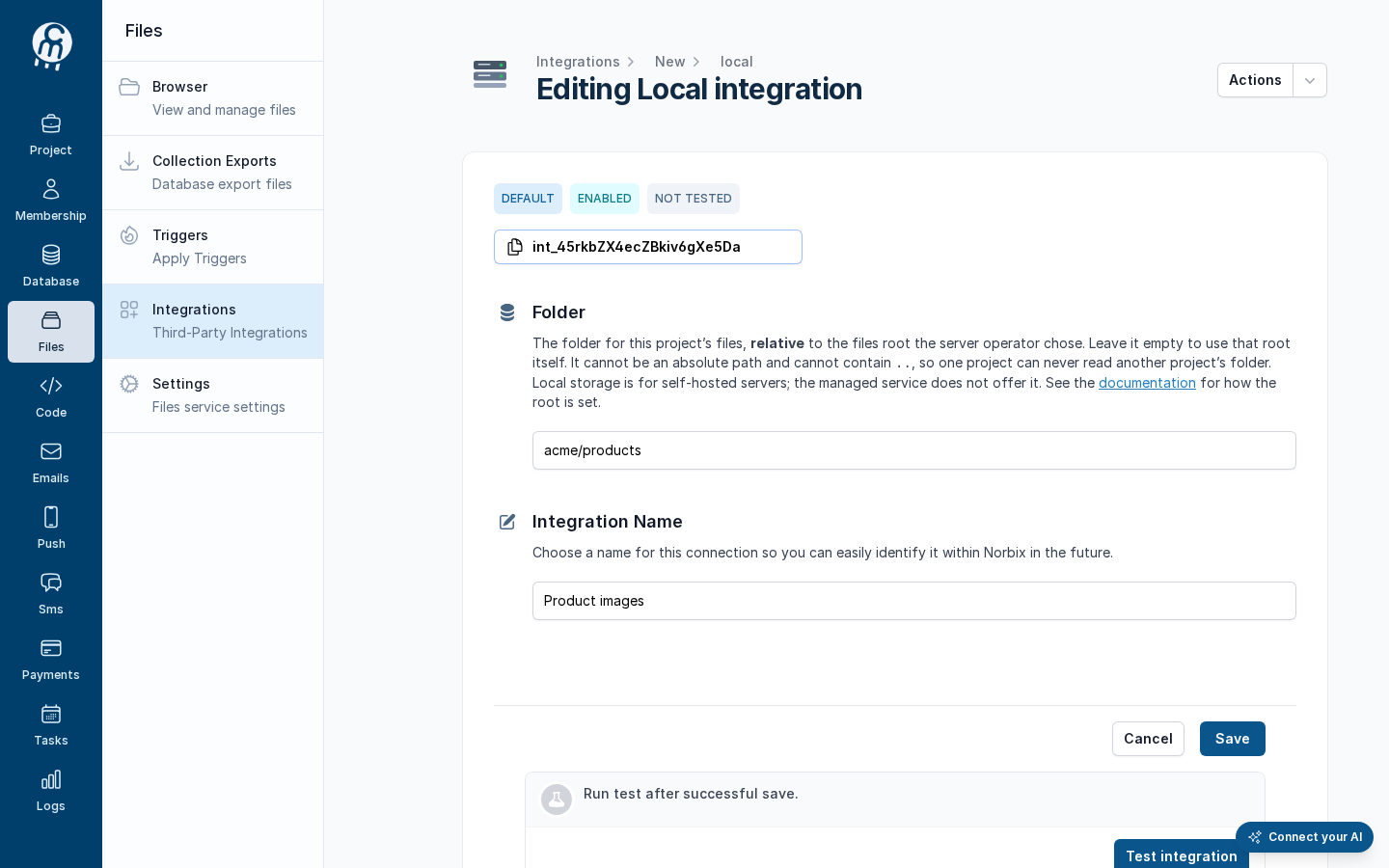
Press **Save**. The page becomes **Editing Local integration** with the id (`int_45rkbZX4ecZBkiv6gXe5Da`) and the badges **DEFAULT** (the first integration of the project) · **ENABLED** · **NOT TESTED**.
After save.
## Test and set as default
Press **Test integration**: it writes, reads, lists and deletes a probe file in the folder — **Test passed** with four **Success** lines on a working server (see [Test an integration](/codemash/cloud/files/integrations/test.md)). **Actions → Set as default** makes it the storage file calls use when they name none (see [Set as default](/codemash/cloud/files/integrations/set-default.md)).
With Local, uploads and downloads go through the Api server itself: the upload link is `/v3/files//content?path=…&token=…`.
## Common errors
| Message | Cause | Fix |
| ---------------------------------------------------------------------------------------------------------------------------------------------- | ------------------------------------------------------------------------------------------------------ | ---------------------------------------------------------------------------------------------------------------- |
| *The folder must be relative. A Local files integration can only point at a folder inside the server’s files root, never at an absolute path.* | **Folder** starts with `/` or a drive letter. | Type a relative folder, for example `acme/products`. |
| *The folder must not contain “..”. A Local files integration can only point at a folder inside the server’s files root.* | **Folder** has a `..` part. | Remove it. |
| No **Local** card in the picker | The server has no files root, or `NORBIX_FILES_LOCAL_DISABLED` is set, or this is the managed service. | Ask the operator to set `NORBIX_FILES_LOCAL_ROOT`, or pick another provider. |
| **Upload failed** — *the storage provider refused the file (HTTP 403)* for a `.csv` file | The server refuses the CSV content type on the Local upload link. | Upload it as `.txt` or zipped until this is fixed — see [Upload files](/codemash/cloud/files/browser/upload.md). |
## Do it from code
```ts
const { id } = await norbix.hub.files.saveFilesIntegration({
integration: { provider: 'Local', integrationName: 'Backups (from code)', isEnabled: true, rootPath: 'acme/backups' },
});
console.log(id); // int_YRM1ReSGvAU1Ns1j8fLOq
```
```sh
norbix hub files integration save --integration:json '{"provider":"Local","integrationName":"Scratch (cli)","isEnabled":true,"rootPath":"acme/scratch"}'
```
The client setup is on the [Files page](/codemash/cloud/files.md#use-it-from-code). API: [Save Files Integration](/codemash/api-reference/files/integrations/save-files-integration.md)