> For the complete documentation index, see [llms.txt](https://codemash.gitbook.io/codemash/llms.txt). Markdown versions of documentation pages are available by appending `.md` to page URLs; this page is available as [Markdown](https://codemash.gitbook.io/codemash/cloud/files/integrations/providers/google-cloud.md).
# Google Cloud Storage
Connect Google Cloud Storage — keep a project's files in your Cloud Storage bucket.
**Google Cloud Storage** keeps the project's files in a bucket of your Google Cloud project. Norbix reaches it with a service account's JSON key.
## Get your credentials
1. In the [Google Cloud console](https://console.cloud.google.com), create a bucket, for example `acme-shop-assets`, with **Prevent public access** on — [Create buckets](https://cloud.google.com/storage/docs/creating-buckets).
2. Create a service account, for example `norbix-files` — [Create service accounts](https://cloud.google.com/iam/docs/service-accounts-create).
3. On the bucket's **Permissions** tab, grant that service account the role **Storage Object Admin** (read, write and delete objects) — [Use IAM permissions](https://cloud.google.com/storage/docs/access-control/using-iam-permissions).
4. For uploads from Cloud: set a CORS rule on the bucket that allows your Cloud address with `PUT`, `GET` and `HEAD` and the header `content-type` — [Set up CORS](https://cloud.google.com/storage/docs/using-cors). The browser sends the bytes straight to the bucket.
5. On the service account's **Keys** tab, press **Add key → Create new key → JSON**. The browser downloads the key file — [Create and delete service account keys](https://cloud.google.com/iam/docs/keys-create-delete). Keep it secret.
## Connect it in Cloud
**Where:** Files → Integrations → **Add New Integration** → Google Cloud Storage → **Connect**
| Field | Required | What it does | Example |
| ------------------------ | -------- | -------------------------------------------------------------------------------- | ----------------------------------------------------------------------------------- |
| Bucket Name | yes | The bucket the files go into. | `acme-shop-assets` |
| Service Account JSON Key | yes | The whole content of the key file. It is stored encrypted and never shown again. | `{ "type": "service_account", "project_id": "acme-shop-demo", … }` (not a real key) |
| Integration Name | yes | The name in the list. | `Shop assets` |
The filled form (placeholder values).
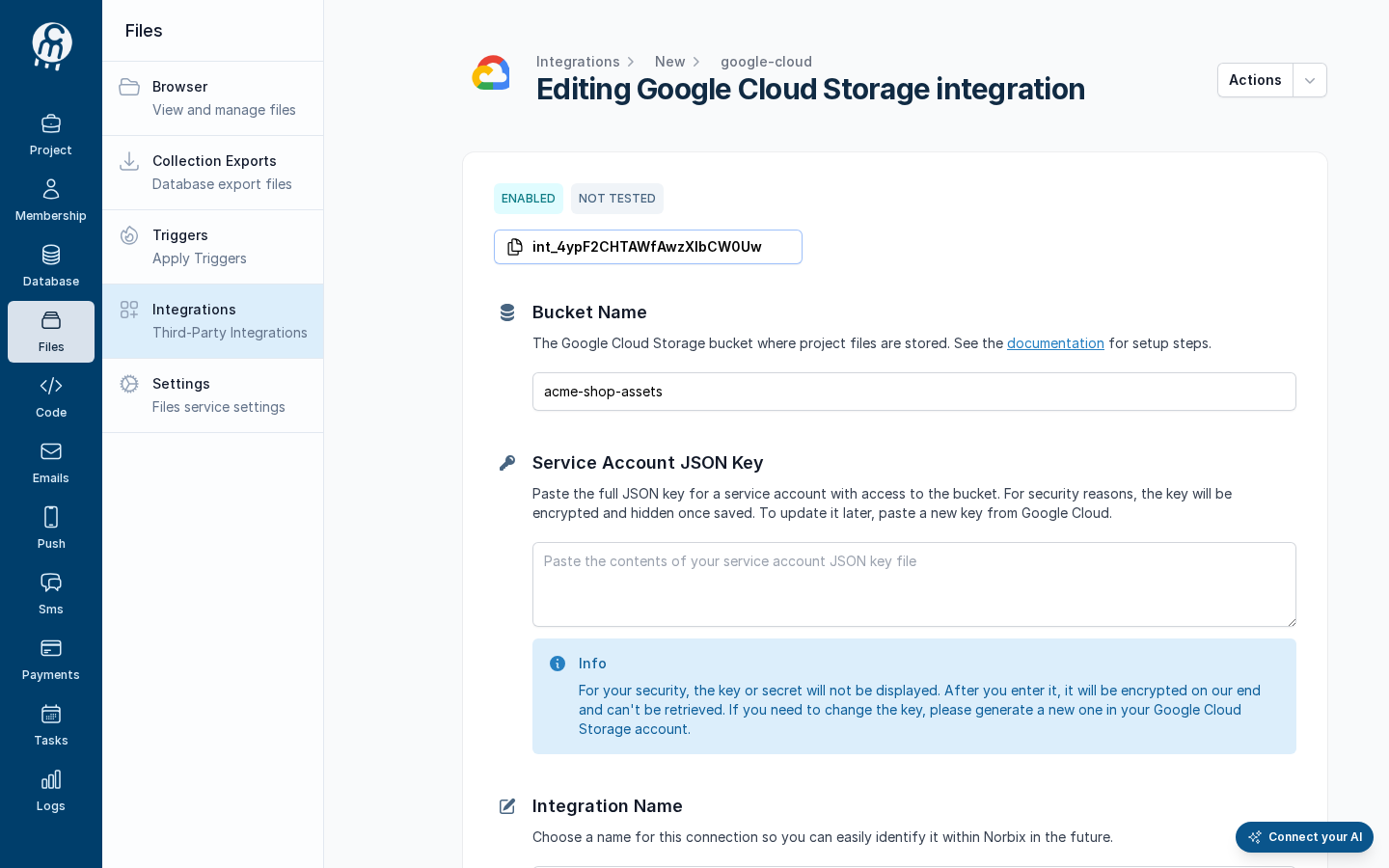
Press **Save**. The page becomes **Editing Google Cloud Storage integration** with the id and the badges **ENABLED** · **NOT TESTED**; the key box is empty again. To save a later change, paste the key again.
After save.
## Test and set as default
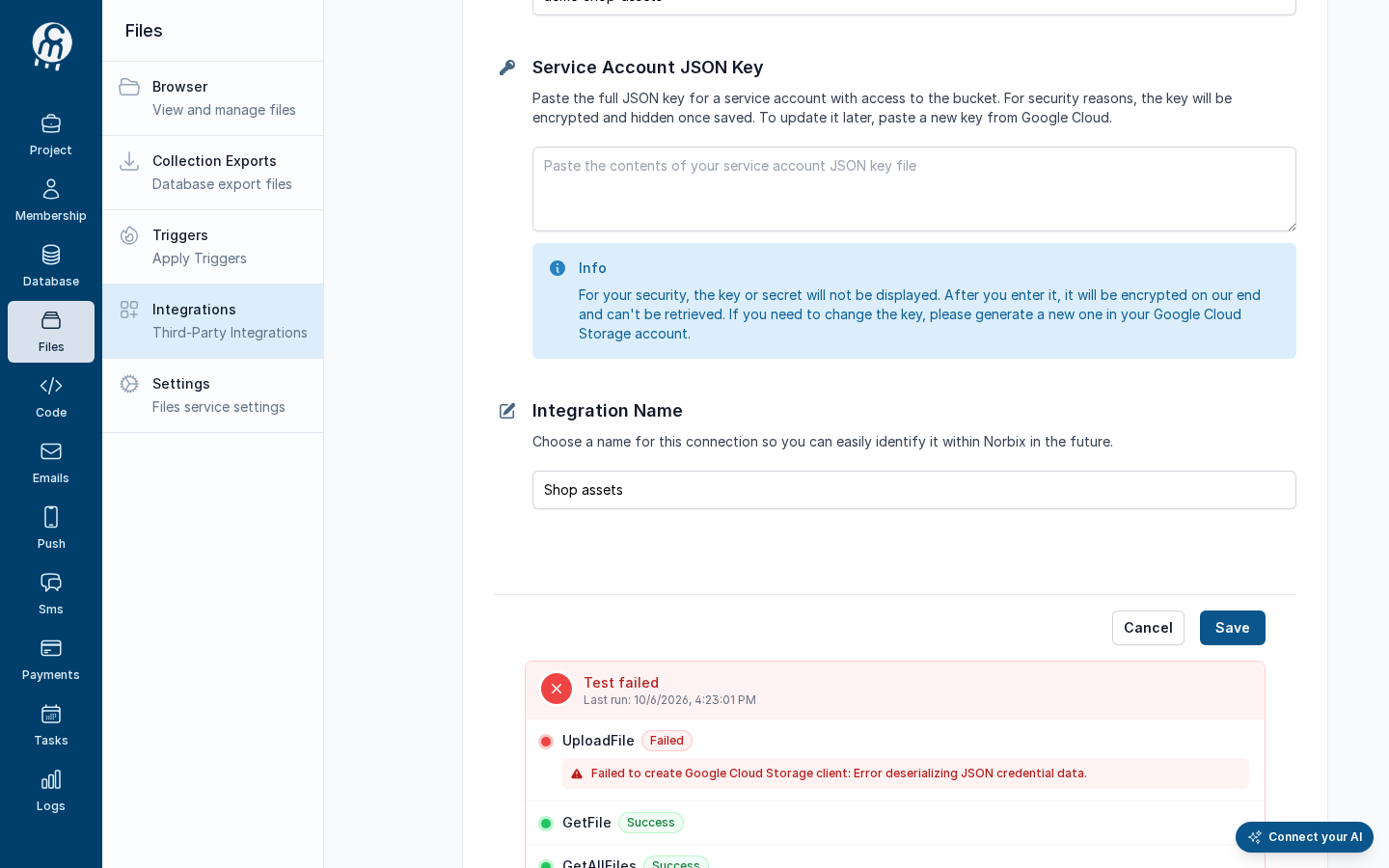
**Test integration** uploads, reads, lists and deletes a probe file in the bucket — see [Test an integration](/codemash/cloud/files/integrations/test.md). With the placeholder key the test fails on **UploadFile**; the lines below it were not run, although Cloud draws them as **Success**:
A failed test with the placeholder key.
**Actions → Set as default** makes it the storage file calls use when they name none — see [Set as default](/codemash/cloud/files/integrations/set-default.md).
## Common errors
| Message | Cause | Fix |
| ----------------------------------------------------------------------------------------- | --------------------------------------------------------------------------------------------- | ------------------------------------ |
| *Failed to create Google Cloud Storage client: Error deserializing JSON credential data.* | The box does not hold a complete service-account key (a part of it, or another kind of JSON). | Paste the whole downloaded key file. |
| *Required* under **Service Account JSON Key** when you save a change | The secret is never sent back to the form. | Paste the key again, then **Save**. |
## Do it from code
```ts
import fs from 'node:fs';
const { id } = await norbix.hub.files.saveFilesIntegration({
integration: {
provider: 'GoogleCloudStorage',
integrationName: 'Shop assets (code)',
isEnabled: true,
bucketName: 'acme-shop-assets',
serviceAccountJsonKey: fs.readFileSync('norbix-files-key.json', 'utf8'),
},
});
```
```sh
norbix hub files integration test --integrationId int_4ypF2CHTAWfAwzXIbCW0Uw
```
The client setup is on the [Files page](/codemash/cloud/files.md#use-it-from-code). API: [Save Files Integration](/codemash/api-reference/files/integrations/save-files-integration.md) · [Test Files Integration](/codemash/api-reference/files/integrations/test-files-integration.md)