> For the complete documentation index, see [llms.txt](https://codemash.gitbook.io/codemash/llms.txt). Markdown versions of documentation pages are available by appending `.md` to page URLs; this page is available as [Markdown](https://codemash.gitbook.io/codemash/cloud/files/integrations/providers/azure-blob.md).
# Azure Blob Storage
Connect Azure Blob Storage — keep a project's files in a container of your Azure storage account.
**Azure Blob Storage** keeps the project's files in a container of your own Azure storage account. Norbix reaches it with the account's connection string.
## Get your credentials
1. In the [Azure portal](https://portal.azure.com), create a storage account if you have none — [Create a storage account](https://learn.microsoft.com/en-us/azure/storage/common/storage-account-create).
2. In the storage account, open **Data storage → Containers**, press **+ Container** and create a private container, for example `invoices` — [Create a container](https://learn.microsoft.com/en-us/azure/storage/blobs/storage-quickstart-blobs-portal).
3. For uploads from Cloud: under **Settings → Resource sharing (CORS)** → **Blob service**, allow your Cloud address (for example `https://cloud.norbix.ai`) with the methods `PUT`, `GET` and `HEAD` and the allowed headers `*` — [CORS support for Azure Storage](https://learn.microsoft.com/en-us/rest/api/storageservices/cross-origin-resource-sharing--cors--support-for-the-azure-storage-services). The browser sends the bytes straight to Azure.
4. Open **Security + networking → Access keys**, press **Show** next to **Connection string** of `key1` and copy it — [Manage storage account access keys](https://learn.microsoft.com/en-us/azure/storage/common/storage-account-keys-manage). It looks like `DefaultEndpointsProtocol=https;AccountName=…;AccountKey=…;EndpointSuffix=core.windows.net`.
## Connect it in Cloud
**Where:** Files → Integrations → **Add New Integration** → Azure Blob Storage → **Connect**
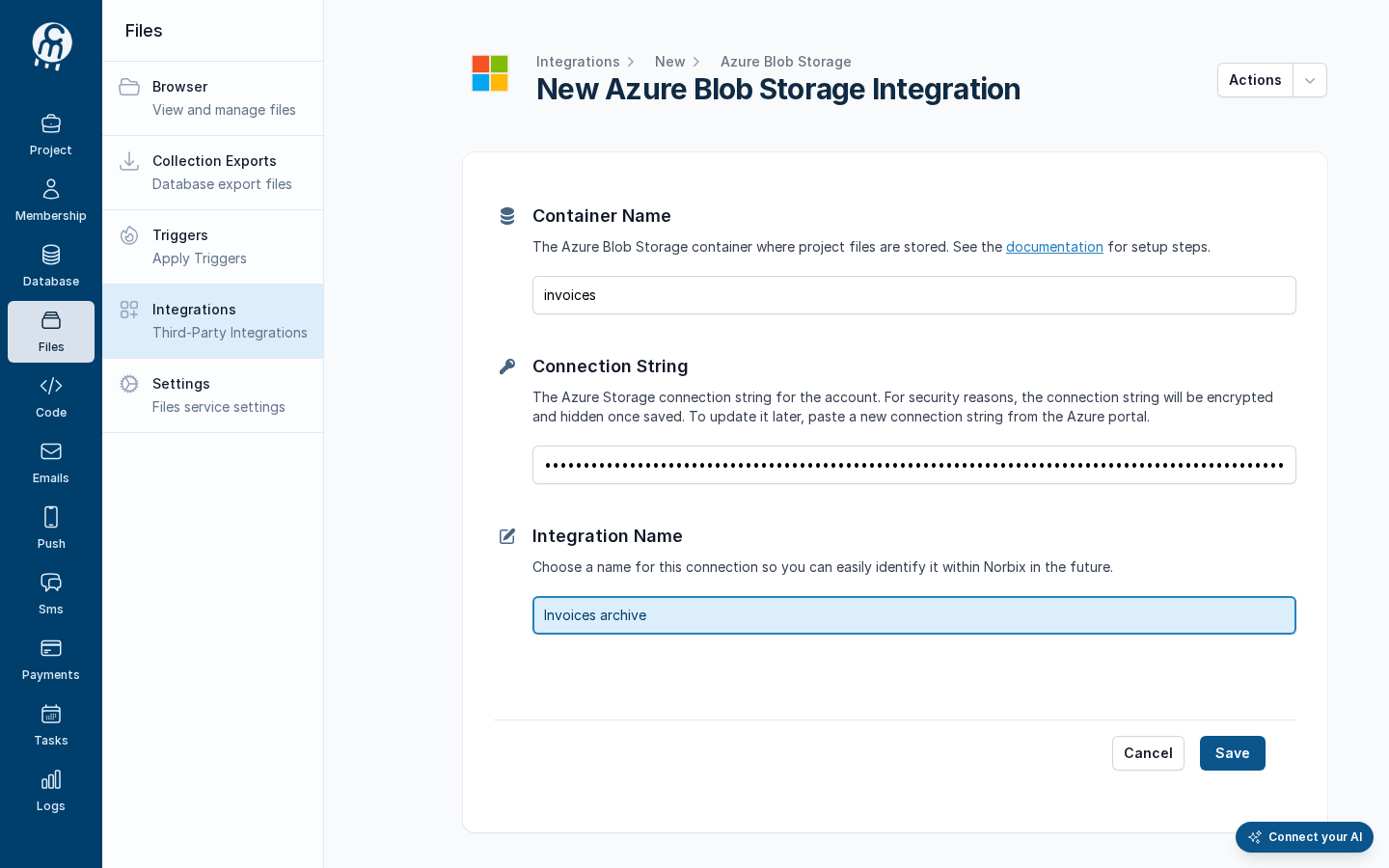
| Field | Required | What it does | Example |
| ----------------- | -------- | -------------------------------------------------------------------------------------- | ------------------------------------------------------------------------------------------- |
| Container Name | yes | The container the files go into. | `invoices` |
| Connection String | yes | The storage account's connection string. It is stored encrypted and never shown again. | `DefaultEndpointsProtocol=https;AccountName=acmeinvoicesdemo;AccountKey=…` (not a real key) |
| Integration Name | yes | The name in the list. | `Invoices archive` |
The filled form (placeholder values).
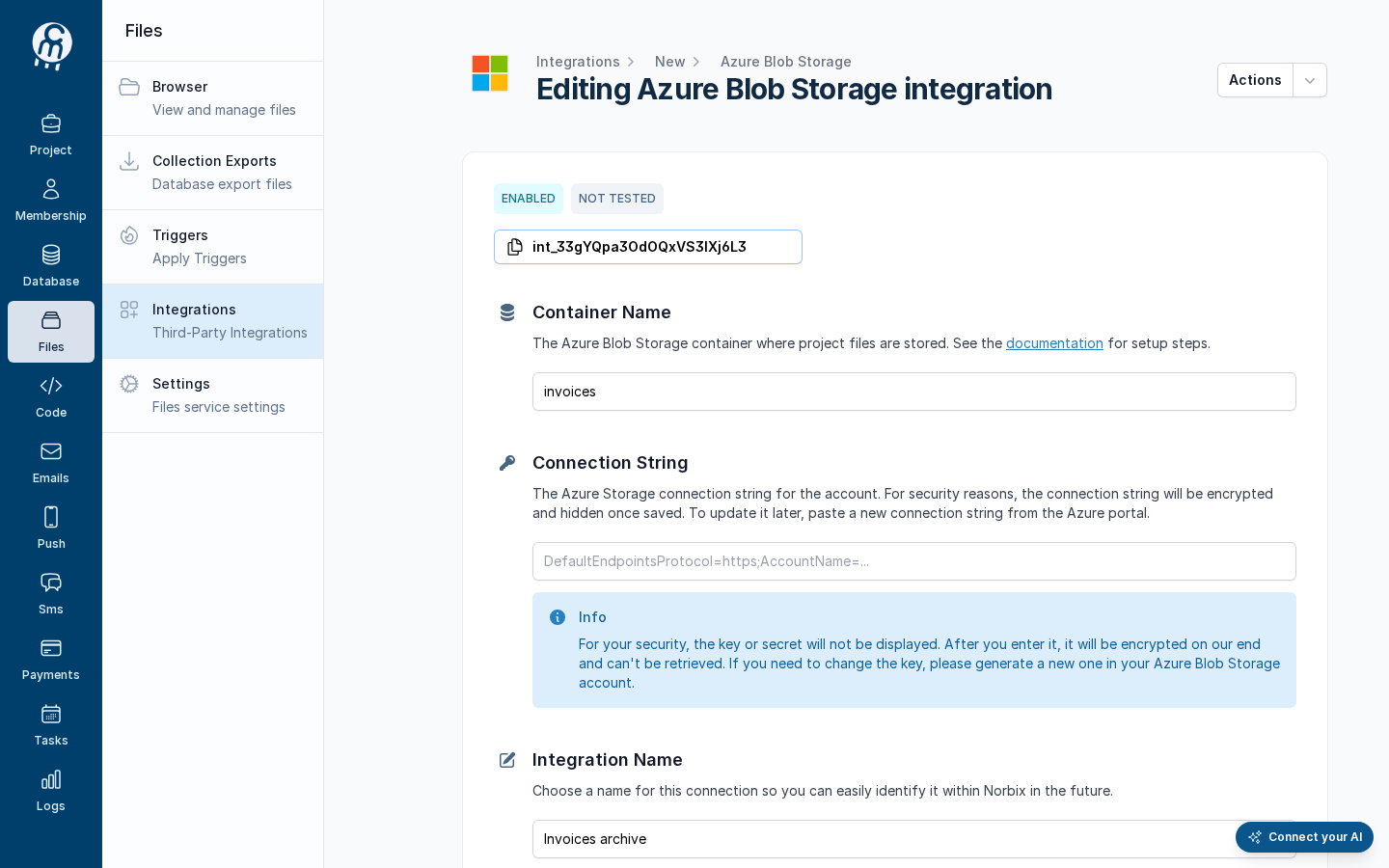
Press **Save**. The page becomes **Editing Azure Blob Storage integration** with the id and the badges **ENABLED** · **NOT TESTED**; the connection string field is empty again and a blue **Info** box says the secret will not be displayed. To save a later change, paste the connection string again.
After save.
## Test and set as default
**Test integration** uploads, reads, lists and deletes a probe file in the container — see [Test an integration](/codemash/cloud/files/integrations/test.md). With a wrong account name the test takes about half a minute, because Azure's client retries six times, then fails on **UploadFile**:
A failed test with the placeholder account.
**Actions → Set as default** makes it the storage file calls use when they name none — see [Set as default](/codemash/cloud/files/integrations/set-default.md).
## Common errors
| Message | Cause | Fix |
| -------------------------------------------------------------------------------------------------------------------------------------------- | ---------------------------------------------------------- | ------------------------------------------------------ |
| *Failed to create Azure Blob Storage client: Retry failed after 6 tries … Name or service not known (``.blob.core.windows.net:443)* | The `AccountName` in the connection string does not exist. | Copy the connection string again from **Access keys**. |
| *Required* under **Connection String** when you save a change | The secret is never sent back to the form. | Paste the connection string again, then **Save**. |
## Do it from code
```ts
const { id } = await norbix.hub.files.saveFilesIntegration({
integration: {
provider: 'AzureBlobStorage',
integrationName: 'Invoices archive (code)',
isEnabled: true,
blobName: 'invoices',
connectionString: process.env.AZURE_STORAGE_CONNECTION_STRING!,
},
});
console.log(id); // int_…
```
```sh
norbix hub files integration test --integrationId int_33gYQpa3OdOQxVS3lXj6L3
```
The client setup is on the [Files page](/codemash/cloud/files.md#use-it-from-code). API: [Save Files Integration](/codemash/api-reference/files/integrations/save-files-integration.md) · [Test Files Integration](/codemash/api-reference/files/integrations/test-files-integration.md)