> For the complete documentation index, see [llms.txt](https://codemash.gitbook.io/codemash/llms.txt). Markdown versions of documentation pages are available by appending `.md` to page URLs; this page is available as [Markdown](https://codemash.gitbook.io/codemash/cloud/files/integrations/providers/aws-s3.md).

# AWS S3

Connect AWS S3 — keep a project's files in your own S3 bucket, through a cross-account role or an IAM user.

**AWS S3** keeps the project's files in an S3 bucket of your own AWS account. Norbix reaches it either through a **Cross-Account Role** that it assumes (no secret to store — Amazon's recommended way) or through an **IAM User**'s access key.

{% hint style="warning" %}
**Cross-Account Role** works only when Norbix itself runs on AWS (the managed service, or your own installation on AWS EC2 or Kubernetes), because Norbix must be inside AWS to assume a role in your account. On other hosting — and in this version also on AWS, where its test and every upload or download still fail with *The given key 'accessKey' was not present in the dictionary* (`CM-ERRORS-INFRA-NORBIX-001`) — connect S3 with **IAM User**.
{% endhint %}

## Get your credentials

The Cloud wizard walks you through the AWS side and shows the values to use; these are the same steps in the AWS console.

1. Sign in to the [AWS Management Console](https://console.aws.amazon.com) and create a bucket, for example `acme-shop-media` in `eu-central-1`, with **Block all public access** on — [Creating a bucket](https://docs.aws.amazon.com/AmazonS3/latest/userguide/create-bucket-overview.html).
2. Create an IAM policy with the JSON the wizard shows (it allows `s3:*` on the bucket and its objects). Replace `change-to-your-bucket-name` with your bucket name if the JSON still shows it. Save it with the name the wizard shows — [Creating IAM policies](https://docs.aws.amazon.com/IAM/latest/UserGuide/access_policies_create-console.html).
3. On the bucket, open **Permissions → Cross-origin resource sharing (CORS) → Edit** and paste the CORS JSON the wizard shows; it allows `PUT`, `GET` and `HEAD` from your Cloud address. Cloud sends uploads straight from your browser to the bucket — [CORS configuration](https://docs.aws.amazon.com/AmazonS3/latest/userguide/enabling-cors-examples.html).
4. Then one of the two:
   * **Cross-Account Role** — create a role with the trusted entity **AWS account**, **Another AWS account** = the account id the wizard shows, **Require external ID** on with the External ID the wizard shows (your Norbix account id, `acc_…`), attach the policy, and copy the role's ARN — [Access for third parties (external ID)](https://docs.aws.amazon.com/IAM/latest/UserGuide/id_roles_common-scenarios_third-party.html).
   * **IAM User** — create a user, attach the policy, then on **Security credentials** press **Create access key** (third-party service) and copy the access key and the secret access key — [Manage access keys](https://docs.aws.amazon.com/IAM/latest/UserGuide/id_credentials_access-keys.html).

## Connect it in Cloud

**Where:** Files → Integrations → **Add New Integration** → AWS S3 → **Connect**

1. Pick **How would you like to connect to AWS S3?** — **Cross-Account Role** or **IAM User**. The wizard has three steps: **01 Create AWS Policy**, **02 Create Cross-Account Role** (or **Create IAM User**), **03 Connect**.

   <figure><img src="https://712692422-files.gitbook.io/~/files/v0/b/gitbook-x-prod.appspot.com/o/spaces%2FHy372bqsaex2cqS3ikhL%2Fuploads%2Fgit-blob-cebaf5ab1e4315062413d0333d8bb92d204f8c28%2Faws-s3-form-1.png?alt=media" alt="New AWS S3 Integration: How would you like to connect to AWS S3? with the cards Cross-Account Role (Amazon recommended way) and IAM User, and the steps 01 Create AWS Policy, 02 Create Cross-Account Role, 03 Connect"><figcaption><p>Pick the way to connect.</p></figcaption></figure>
2. In step 01, fill **Bucket name** and pick **Bucket region**, then do the AWS steps the screen lists (**Create AWS Policy**, **Save policy**, **Configure bucket CORS**) and press **Next**.

   <figure><img src="https://712692422-files.gitbook.io/~/files/v0/b/gitbook-x-prod.appspot.com/o/spaces%2FHy372bqsaex2cqS3ikhL%2Fuploads%2Fgit-blob-ab83225f92da4b9d102ab5fbd933331e8438ea2b%2Faws-s3-form-2.png?alt=media" alt="Step 01: Login to your AWS Management Console, Bucket name acme-shop-media, Bucket region Frankfurt (EU) eu-central-1, and Create AWS Policy with the JSON to copy"><figcaption><p>Step 01: bucket and policy.</p></figcaption></figure>
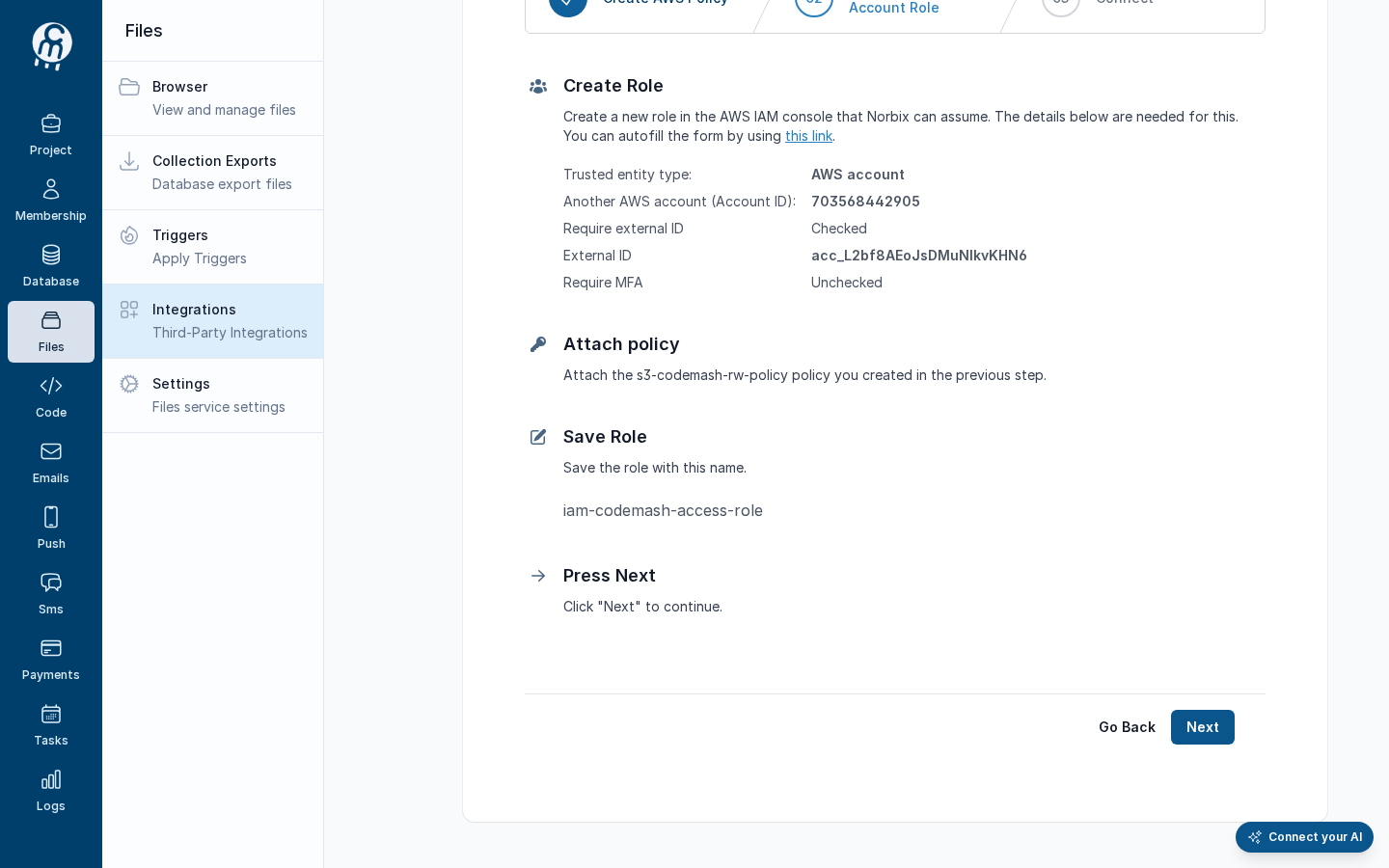
3. In step 02, create the role (or the user) as the screen shows and press **Next**. For a role, the screen lists the account id and your **External ID** (`acc_…`), and **this link** opens the AWS form already filled.

   <figure><img src="https://712692422-files.gitbook.io/~/files/v0/b/gitbook-x-prod.appspot.com/o/spaces%2FHy372bqsaex2cqS3ikhL%2Fuploads%2Fgit-blob-5d27320559b4ca36b639abd6fd523ada75b572c5%2Faws-s3-form-3.png?alt=media" alt="Step 02 Create Role: Trusted entity type AWS account, Another AWS account (Account ID), Require external ID Checked, External ID acc_L2bf8AEoJsDMuNIkvKHN6, Require MFA Unchecked, Attach policy, Save Role, Press Next"><figcaption><p>Step 02 for a Cross-Account Role.</p></figcaption></figure>
4. In step 03, fill the last fields and press **Save**:

   | Field             | Required                    | What it does                                        | Example                                                        |
   | ----------------- | --------------------------- | --------------------------------------------------- | -------------------------------------------------------------- |
   | Bucket name       | yes                         | The bucket the files go into (step 01).             | `acme-shop-media`                                              |
   | Bucket region     | yes                         | The bucket's AWS region (step 01).                  | `eu-central-1`                                                 |
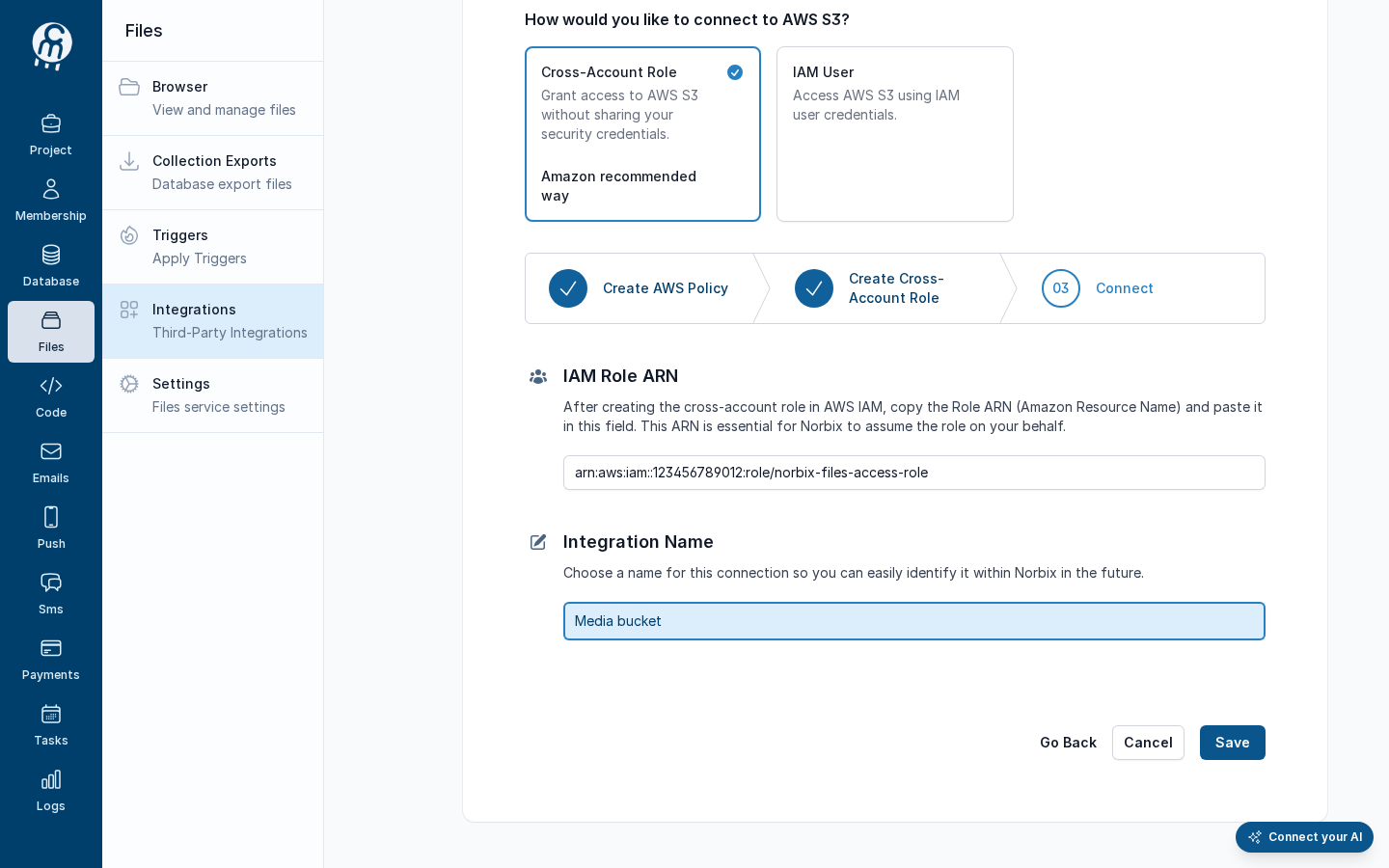
   | IAM Role ARN      | yes, for Cross-Account Role | The ARN of the role you created.                    | `arn:aws:iam::123456789012:role/norbix-files-access-role`      |
   | Access key        | yes, for IAM User           | The IAM user's access key id.                       | `AKIAIOSFODNN7EXAMPLE` (AWS's own example)                     |
   | Secret access key | yes, for IAM User           | The secret; stored encrypted and never shown again. | `wJalrXUtnFEMI/K7MDENG/bPxRfiCYEXAMPLEKEY` (AWS's own example) |
   | Integration Name  | yes                         | The name in the list.                               | `Media bucket`                                                 |

   <figure><img src="https://712692422-files.gitbook.io/~/files/v0/b/gitbook-x-prod.appspot.com/o/spaces%2FHy372bqsaex2cqS3ikhL%2Fuploads%2Fgit-blob-7f4fe22be91a56706acbb51151251e22dff4592f%2Faws-s3-form-4.png?alt=media" alt="Step 03 Connect for a Cross-Account Role: IAM Role ARN arn:aws:iam::123456789012:role/norbix-files-access-role and Integration Name Media bucket, with Go Back, Cancel and Save"><figcaption><p>Step 03 for a Cross-Account Role (placeholder ARN).</p></figcaption></figure>

   <figure><img src="https://712692422-files.gitbook.io/~/files/v0/b/gitbook-x-prod.appspot.com/o/spaces%2FHy372bqsaex2cqS3ikhL%2Fuploads%2Fgit-blob-60239911a1ce0a26cc72052af794012cc0141210%2Faws-s3-iam-2.png?alt=media" alt="Step 03 Connect for an IAM User: Enter Credentials with Access key and Secret access key, Integration Name Media bucket (IAM user)"><figcaption><p>Step 03 for an IAM User (AWS's example keys).</p></figcaption></figure>

After **Save** the integration has an id and the badges **ENABLED** · **NOT TESTED**, and the panel **Test integration** appears. Opened again later, a saved S3 integration shows a plain edit form (bucket, region and the role ARN or new credentials) instead of the wizard.

<figure><img src="https://712692422-files.gitbook.io/~/files/v0/b/gitbook-x-prod.appspot.com/o/spaces%2FHy372bqsaex2cqS3ikhL%2Fuploads%2Fgit-blob-e1e0dab943583a054db4c2be6abf91c9e8257a05%2Faws-s3-saved-5.png?alt=media" alt="The AWS S3 form after Save: step 03 with the IAM Role ARN and Integration Name Media bucket, and below it the panel Run test after successful save with Test integration"><figcaption><p>After save.</p></figcaption></figure>

## Test and set as default

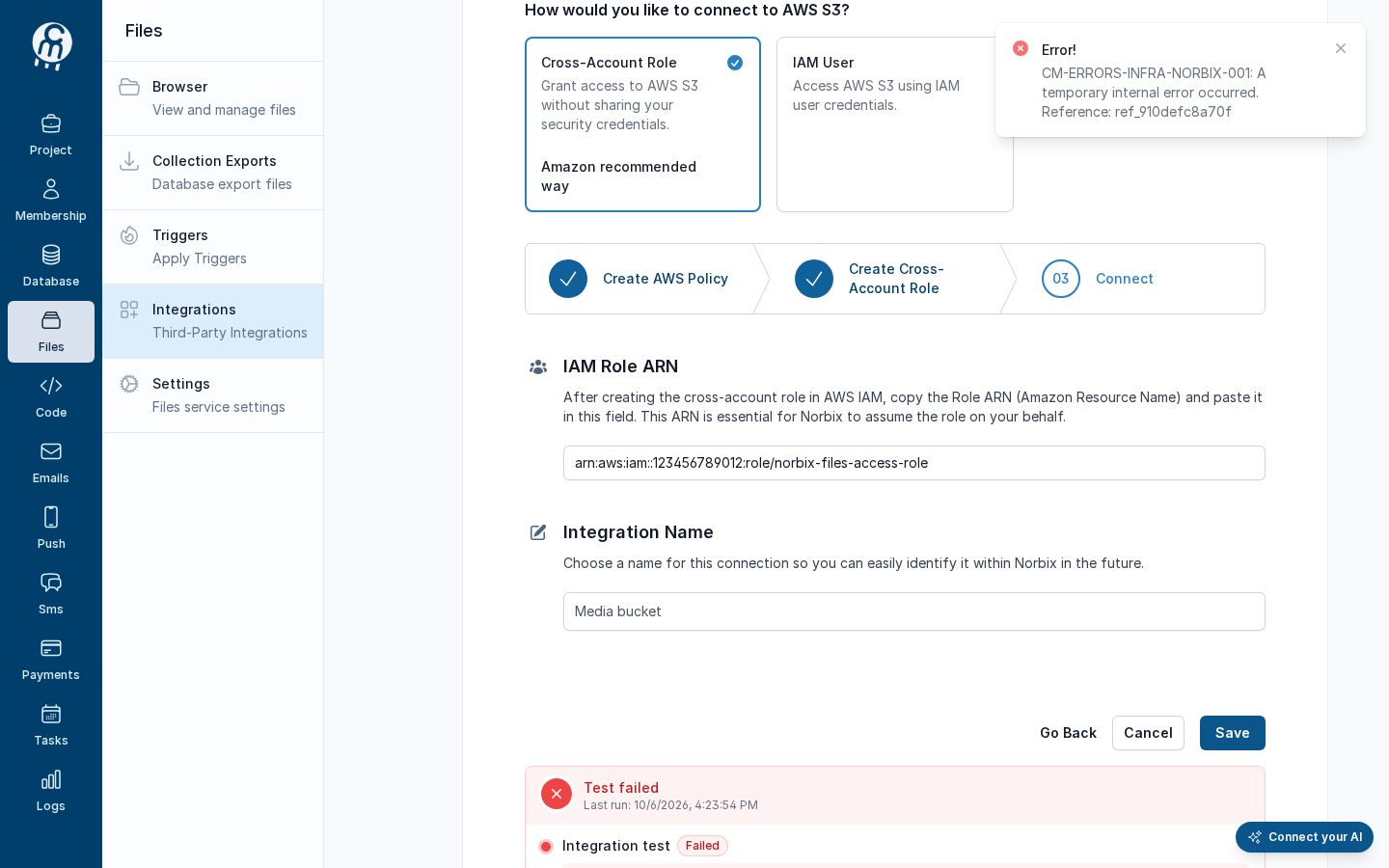
**Test integration** uploads, reads, lists and deletes a probe file in the bucket — see [Test an integration](/codemash/cloud/files/integrations/test.md). A Cross-Account Role integration fails today with the error in the warning above:

<figure><img src="https://712692422-files.gitbook.io/~/files/v0/b/gitbook-x-prod.appspot.com/o/spaces%2FHy372bqsaex2cqS3ikhL%2Fuploads%2Fgit-blob-9f5ce26abeb3f0c3aba9660f45625e22d4b149d7%2Faws-s3-test-6.png?alt=media" alt="Editing AWS S3 integration Media bucket, badges ENABLED and TEST FAILED, Test failed: Integration test Failed, A temporary internal error occurred … (CM-ERRORS-INFRA-NORBIX-001) The given key &#x27;accessKey&#x27; was not present in the dictionary."><figcaption><p>The Cross-Account Role test today.</p></figcaption></figure>

**Actions → Set as default** makes it the storage file calls use when they name none — see [Set as default](/codemash/cloud/files/integrations/set-default.md).

## Common errors

| Message                                                                                                                                    | Cause                                                                                 | Fix                                                                      |
| ------------------------------------------------------------------------------------------------------------------------------------------ | ------------------------------------------------------------------------------------- | ------------------------------------------------------------------------ |
| *A temporary internal error occurred … The given key 'accessKey' was not present in the dictionary.*                                       | A Cross-Account Role integration; the server looks for an access key it never stored. | Connect with **IAM User** until this is fixed.                           |
| *Property ExternalId is required* (from code)                                                                                              | A Cross-Account Role request without `externalId`.                                    | Send your Norbix account id (`acc_…`, shown in step 02) as `externalId`. |
| *This Norbix instance is installed in a non-AWS cloud provider, and connecting to an S3 bucket using Cross-Account Role is not supported.* | A self-hosted server outside AWS cannot assume a role.                                | Use **IAM User**.                                                        |

## Do it from code

```ts
const { id } = await norbix.hub.files.saveFilesIntegration({
  integration: {
    provider: 'AwsS3',
    integrationType: 'Iam',
    integrationName: 'Media bucket (code)',
    isEnabled: true,
    bucketName: 'acme-shop-media',
    region: 'eu-central-1',
    accessKey: process.env.AWS_ACCESS_KEY_ID!,
    secretKey: process.env.AWS_SECRET_ACCESS_KEY!,
  },
});
// Cross-Account Role: integrationType 'CrossAccountRole', roleArn, externalId: 'acc_…' — no keys
```

```sh
norbix hub files integration test --integrationId int_1WWE0t1zpctNjvbGr3ByIy
```

The client setup is on the [Files page](/codemash/cloud/files.md#use-it-from-code). API: [Save Files Integration](/codemash/api-reference/files/integrations/save-files-integration.md) · [Test Files Integration](/codemash/api-reference/files/integrations/test-files-integration.md)