> For the complete documentation index, see [llms.txt](https://codemash.gitbook.io/codemash/llms.txt). Markdown versions of documentation pages are available by appending `.md` to page URLs; this page is available as [Markdown](https://codemash.gitbook.io/codemash/cloud/files.md).
# Files
Store your app's files in the storage you choose — upload, browse, share a public link, and react to new files with triggers.
**Files** stores your app's files — product pictures, invoices, user uploads — in a storage you connect: AWS S3, Azure Blob Storage, Google Cloud Storage, Google Drive, or a folder on your own server (Local, self-hosted only). You browse and upload them in Cloud, your app reads and writes them with the SDK or the API, and a trigger can act when a file is uploaded or deleted.
## Enable the module
Open a project and choose **Files** in the left menu. While the module is off, Cloud shows this page; press **ENABLE**. The button says **ENABLING…** until the module is on.
Files → enable page, shown while the module is off.
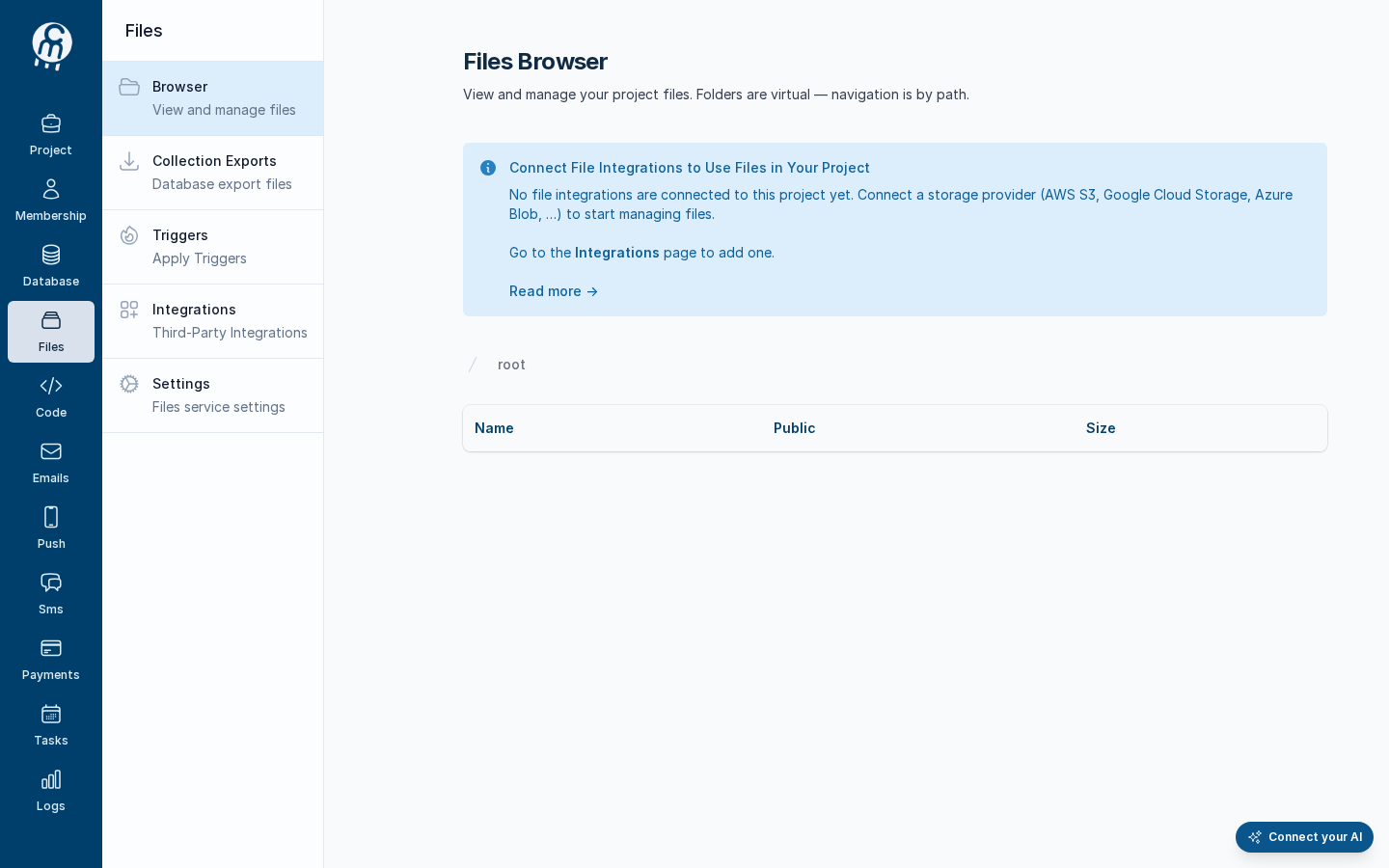
After **ENABLE**, Cloud opens **Files → Browser**. A new project has no storage yet, so the browser says *Connect File Integrations to Use Files in Your Project*: connect one under [Integrations](/codemash/cloud/files/integrations.md) first. To turn the module off again, see [Settings](/codemash/cloud/files/settings.md) — no file and no integration is deleted.
After ENABLE: the Browser and the Files menu.
{% hint style="info" %}
The **Integrations** link inside that box opens a wrong form today (a **New Local Integration** form under the breadcrumb **AWS S3**). Use **Files → Integrations → Add New Integration** instead.
{% endhint %}
## Module map
| Screen | What it is for |
| ----------------------------------------------------------------- | --------------------------------------------------------------------------------------------------------------------------------------------------------------------------------------------------------------------------------------------------------------------------- |
| [Browser](/codemash/cloud/files/browser.md) | Folders and files of a storage: [upload](/codemash/cloud/files/browser/upload.md), [preview, download or replace](/codemash/cloud/files/browser/edit.md), [delete](/codemash/cloud/files/browser/delete.md), [public links](/codemash/cloud/files/browser/public-links.md). |
| [Collection Exports](/codemash/cloud/files/collection-exports.md) | The `exports` folder of the default storage, where database exports are meant to land. |
| [Triggers](/codemash/cloud/files/triggers.md) | Run an action (email, push, SMS, webhook, code, in-app event) when a file is uploaded or deleted, optionally only in one folder. |
| [Integrations](/codemash/cloud/files/integrations.md) | The storages the project uses, which one is the default, and their tests. |
| [Settings](/codemash/cloud/files/settings.md) | Turn the module off for the project. |
## Your first file
1. [Connect a storage](/codemash/cloud/files/integrations/providers.md) — pick a provider; the first integration you save becomes the default. On a self-hosted server, [Local](/codemash/cloud/files/integrations/providers/local.md) works without any cloud account.
2. [Test it](/codemash/cloud/files/integrations/test.md) — **Test integration** uploads, reads, lists and deletes a probe file.
3. [Upload a file](/codemash/cloud/files/browser/upload.md) — **Files → Browser → Upload file**.
4. [Share it](/codemash/cloud/files/browser/public-links.md) — **Make public** gives a link anyone can open; from code, a short-lived signed link does the same for one reader.
## Use it from code
Every **Do it from code** block in the Files pages uses this client. Install `@norbix.ai/ts` (see [SDK install](/codemash/sdks/install.md)) and set `NORBIX_API_KEY` to a project API key.
```ts
import { Norbix } from '@norbix.ai/ts';
const projectId = 'pr_6xPshiVAqNTpl0HwzslUmV';
const norbix = new Norbix({ projectId }); // the key comes from NORBIX_API_KEY
const filesIntegrationId = 'int_45rkbZX4ecZBkiv6gXe5Da'; // Product images (Local)
await norbix.hub.files.enableFiles();
const { defaultIntegrationId, list } = await norbix.hub.files.getFilesIntegrations();
console.log(defaultIntegrationId, list.items.map((i) => `${i.integrationName} ${i.provider}`));
// int_45rkbZX4ecZBkiv6gXe5Da [ 'Product images Local', 'Invoices archive AzureBlobStorage', … ]
```
The CLI lines use the generic `norbix hub …` and `norbix api …` commands of `@norbix.ai/cli` (signed in with `norbix login`, project id in `NORBIX_PROJECT_ID`):
```sh
norbix hub files enable
```
{% hint style="info" %}
The client sends the project id with every call (the `norbix-project-id` header), so the requests do not repeat it. The CLI does the same with the project of `norbix login --project …`, `norbix config set projectId …` or `NORBIX_PROJECT_ID`. The short commands `norbix files upload ` and `norbix files list ` work too; they need the storage, as `--integration int_…` or once with `norbix config set filesIntegrationId int_…`.
{% endhint %}
* The **Hub** (`norbix.hub.files`, `norbix hub files …`) manages the module: integrations, triggers, the browser's folder list and public links.
* The **API** (`norbix.api.files`, `norbix api files …`) is what your app calls: upload, list, file info, signed links, download and delete. Every call names the storage with `filesIntegrationId` and the file with its `path`, for example `mugs/red-mug.png`.
* Address a file by its **path**. Norbix does not give every file in your storage an id — a bucket or drive can hold millions of files. A file gets a stable id (`nbfl_…`) only when it is **used** somewhere, for example as an email attachment or in a file field of a database record; a public file gets a public id (`nbpf_…`). The id that **Get File** returns today for an unused file is made up on each read, so do not store it.
## Related
[Integrations concept](/codemash/cloud/concepts/integrations.md) · [Triggers concept](/codemash/cloud/concepts/triggers.md) · [SDK](/codemash/sdks/files.md) · [CLI](/codemash/cli/cli.md) · [API](/codemash/api-reference/files.md)