> For the complete documentation index, see [llms.txt](https://codemash.gitbook.io/codemash/llms.txt). Markdown versions of documentation pages are available by appending `.md` to page URLs; this page is available as [Markdown](https://codemash.gitbook.io/codemash/cloud/account/licences.md).
# Licences
Get a licence to run Norbix on your own servers — start a trial, buy a licence, see its details, manage it, or ask for Enterprise. Cloud → Account → Licensing is the only place to get one.
**Where:** avatar menu → **Licensing** · `/account/licensing` (Cloud at `https://cloud.norbix.ai`)
A **licence** lets you run Norbix on your own servers (self-hosted). It is bound to your account and to one domain. You get it here, in Cloud → Account → Licensing — this is the **only** place to get a licence. Which licence each way of running Norbix needs, and what a licence contains, is explained in [Licensing](/codemash/get-started/licensing.md).
Your first licence is a **trial** (30 days). Later licences are paid yearly subscriptions. Both go through a payment checkout page; a trial does not charge you during its 30 days.
## Before you start
* A Norbix account on the managed service ([Sign up](/codemash/cloud/account/sign-in.md)). The purchase flow is shown only in the managed-service Cloud; on your own installation the same menu item shows the licence of that installation (see [Result](#result)).
* An account role that may manage billing and licences (**Account Administrator** or **Billing Manager**).
* The domain your installation will run on, for example `acme-demo.example.com`, and access to its DNS. `localhost` or an IP address needs no DNS.
## Steps
1. Open avatar menu → **Licensing**. With no licence yet the header has one button, **Start Trial**; once you have a licence it shows **Buy License** and **Manage Licenses**.
Start Trial (the header text is cut away).
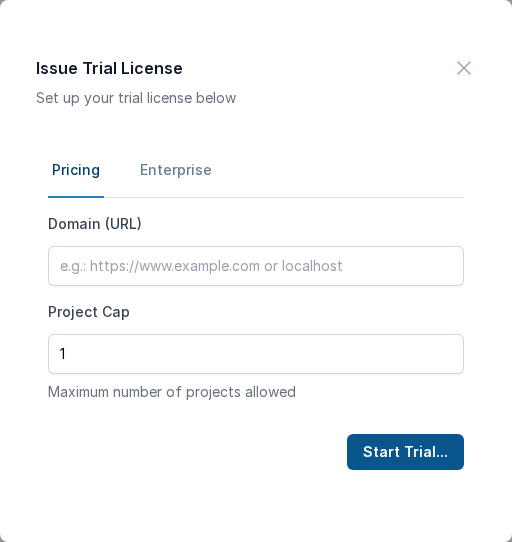
2. Press **Start Trial** (or **Buy License**). The dialog **Issue Trial License** (or **Buy a new License**) opens on the **Pricing** tab.
The licence dialog.
3. Fill in the form:
| Field | Required | What it does | Example |
| ------------ | -------- | --------------------------------------------------------------------------------------------------------------------------------------------------------------------- | -------------------------------------- |
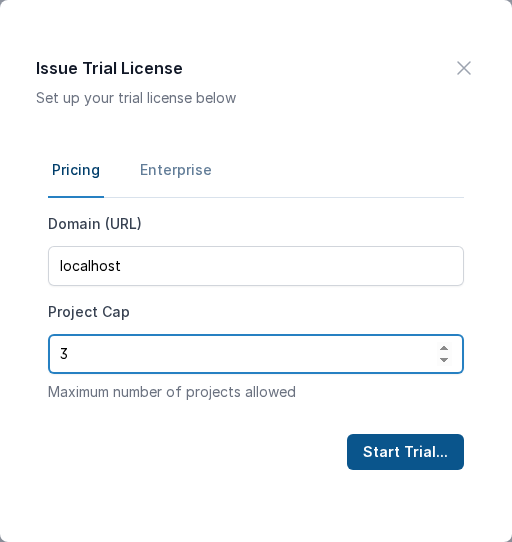
| Domain (URL) | yes | The domain your installation runs on. Norbix serves its parts on sub-domains of it. A domain can hold only one licence. | `acme-demo.example.com` or `localhost` |
| Project Cap | yes | The maximum number of projects the installation may have (1 or more). A trial is always issued for one project; the cap of a paid licence can be changed at checkout. | `3` |
With `localhost` (or an IP address) the domain needs no checks, and **Start Trial...** is enabled at once.
A local installation: no domain checks.
4. For a real domain, two panels appear under **Domain (URL)**:
* **Prove domain ownership (required before purchase)** — add the TXT record it shows at your DNS provider: **Host** `_norbix-proof.acme-demo.example.com`, **Type** `TXT`, **Value** (a long code). Cloud checks it every 5 seconds; while it is missing the panel says *TXT record not found at …*. When it matches, the panel turns green — **Domain ownership verified** — and the purchase button is enabled.
* **Some DNS records are missing** — the A records your installation will need: `cloud.`, `api.`, `*.api.`, `hub.`, `*.hub.` (and `admin.`, optional) in front of your domain. Point them at your server before or after you run the installer. When all required ones resolve the panel turns green: **DNS records are ready**. This panel is a help only; it does not block the purchase.
A real domain before its TXT record exists — the purchase button stays off.
5. Press **Start Trial...** (first licence) or **Buy License...**. Cloud sends you to the payment checkout page. Enter your billing details there; Norbix never sees your card. These docs stop here: no checkout was completed for them.
6. After the checkout you come back to **Licensing**. The screen refreshes itself every 15 seconds (**Last refreshed: …** · **Refresh now**) until the licence is issued, then shows **License created**.
### Enterprise licence
Open the **Enterprise** tab in the same dialog. Enterprise licences are issued by hand for your organisation (scale, other clouds, stricter security, custom AI). Press **Send Inquiry** — your email program opens a ready message to ; fill in the parts in brackets and send it. More: [Enterprise](/codemash/get-started/enterprise.md).
The Enterprise tab.
## Result
The licence list shows one row per licence: **ID**, **License Key** (with a copy button), **Domain**, **Issued on**, **Expires on** (a trial has the **Trial** badge) and **Projects** (the cap). Press a licence **ID** to open **License details** — the same values plus the DNS panel for that domain — and **Back to licenses** to return. Put the licence key into your installation (`NORBIX_LICENSE`), see [Self-hosted](/codemash/get-started/self-hosted.md).
{% hint style="info" %}
The licence list and the details view are described from the Cloud source: they appear only after a real checkout, which was not done for these docs, so they have no picture here.
{% endhint %}
On your own installation, **Licensing** shows **Current license** (Domain, Account, Email, Edition, Expires on, Project cap, Trial) and **Licensing status** (Mode, Grace remaining, Licensed domain, Serving domain, Last proven, Last heartbeat). The modes — Licensed, Activation pending, Degraded, License suspended — are explained in [Licensing](/codemash/get-started/licensing.md).
## Change or remove it later
* **Manage Licenses** — opens the billing portal, where you change the number of projects, update the payment method, see invoices or cancel a paid licence.
* **A new domain** — a licence is bound to its domain; buy a new licence for the new domain.
* **Trial end** — a trial without a payment method ends after 30 days.
## Do it from code
```ts
const { list } = await norbix.hub.account.getLicenses({});
const { challenge } = await norbix.hub.licensing.startLicenseDomainVerification({ domain: 'acme-demo.example.com' });
console.log(list.length, challenge.txtHost, challenge.verified); // 0 "_norbix-proof.acme-demo.example.com" false
```
```sh
norbix hub account license domain dns status get --domain acme-demo.example.com
```
Buying itself is only possible in Cloud (it ends on the payment page). The client setup is on the [Account page](/codemash/cloud/account.md#use-it-from-code). API: [Get Licenses](/codemash/api-reference/account/licenses/get-licenses.md) · [Get License Domain Dns Status](/codemash/api-reference/account/licensing/get-license-domain-dns-status.md) · [Create Stripe Checkout Session](/codemash/api-reference/account/stripe/create-stripe-checkout-session.md)